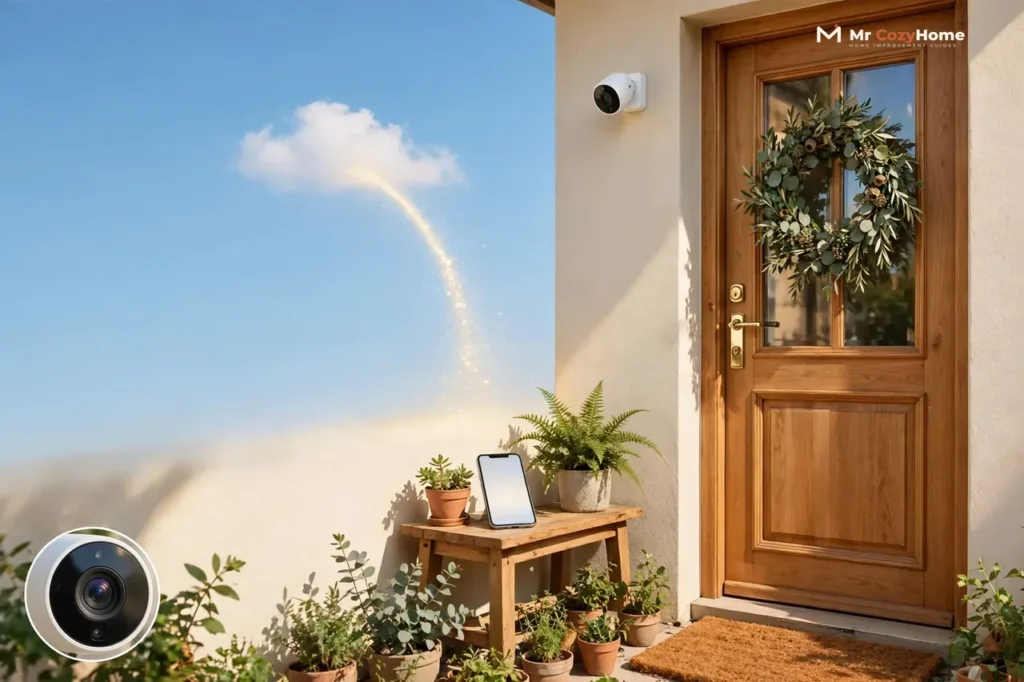
A cloud camera is a security camera that sends its video to secure servers on the internet instead of saving it only on a memory card or a recorder in your home. You watch live video and old clips in the camera’s app, from anywhere. The big win is simple: if someone steals or smashes the camera, your footage is already safe somewhere else.
That safety comes with a trade-off. Most cloud cameras need a paid monthly plan to save video, and they need working internet to upload anything. This guide explains how a cloud camera works, what the plans really cost, what happens when your Wi-Fi drops, and how to keep your footage private.
What Is a Cloud Camera?
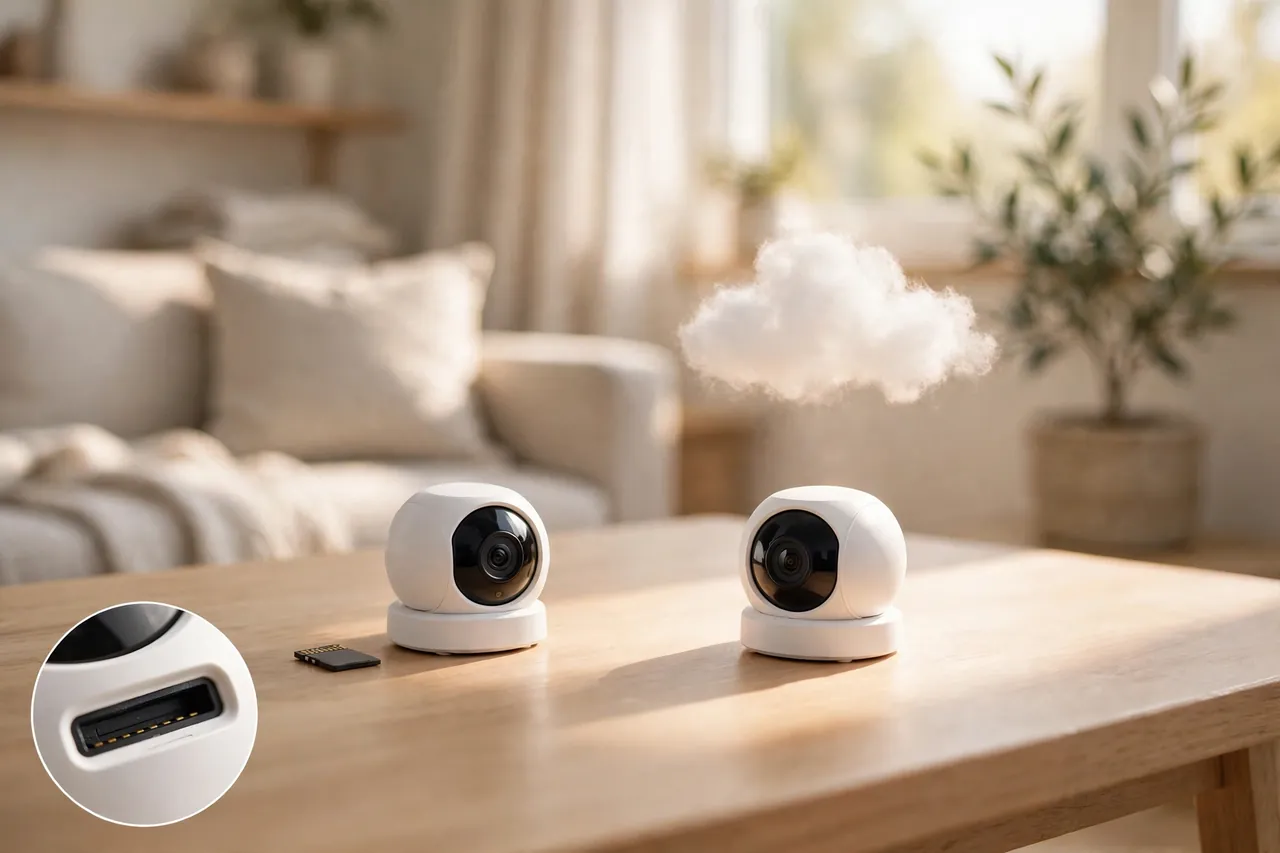
A cloud camera is a security camera that records video and stores it on remote servers run by the camera company, rather than on a hard drive or memory card at your house. The word “cloud” just means someone else’s computers, reached over the internet. Your camera connects to your home Wi-Fi, and every clip it records travels up to those servers.
Think of it like email. Your messages do not live only on your phone. They live on your email provider’s servers, so you can open them from any device. A cloud camera works the same way with video. You open the app on your phone, and the app pulls your clips down from the provider’s servers.
Most cloud cameras are small, wireless, and easy to set up. You plug one in or charge its battery, connect it to Wi-Fi through the app, and it starts working in minutes. There is no recorder box to hide in a closet and no cables to run through walls. Ring, Google Nest, Arlo, Wyze, Blink, and Reolink all sell cloud cameras, and video doorbells work the same way. If you want the full picture on doorbells, read how Ring doorbells work and our guide to a doorbell camera for apartments.
A cloud camera is not the same thing as an internet camera in general. Plenty of cameras connect to the internet but still save video at home. The cloud part is about where the recording lives. If the video ends up on the company’s servers, it is a cloud camera. If it ends up on a recorder in your house, it is a local-storage camera, even when you can still view it on your phone.
How Does a Cloud Camera Work?
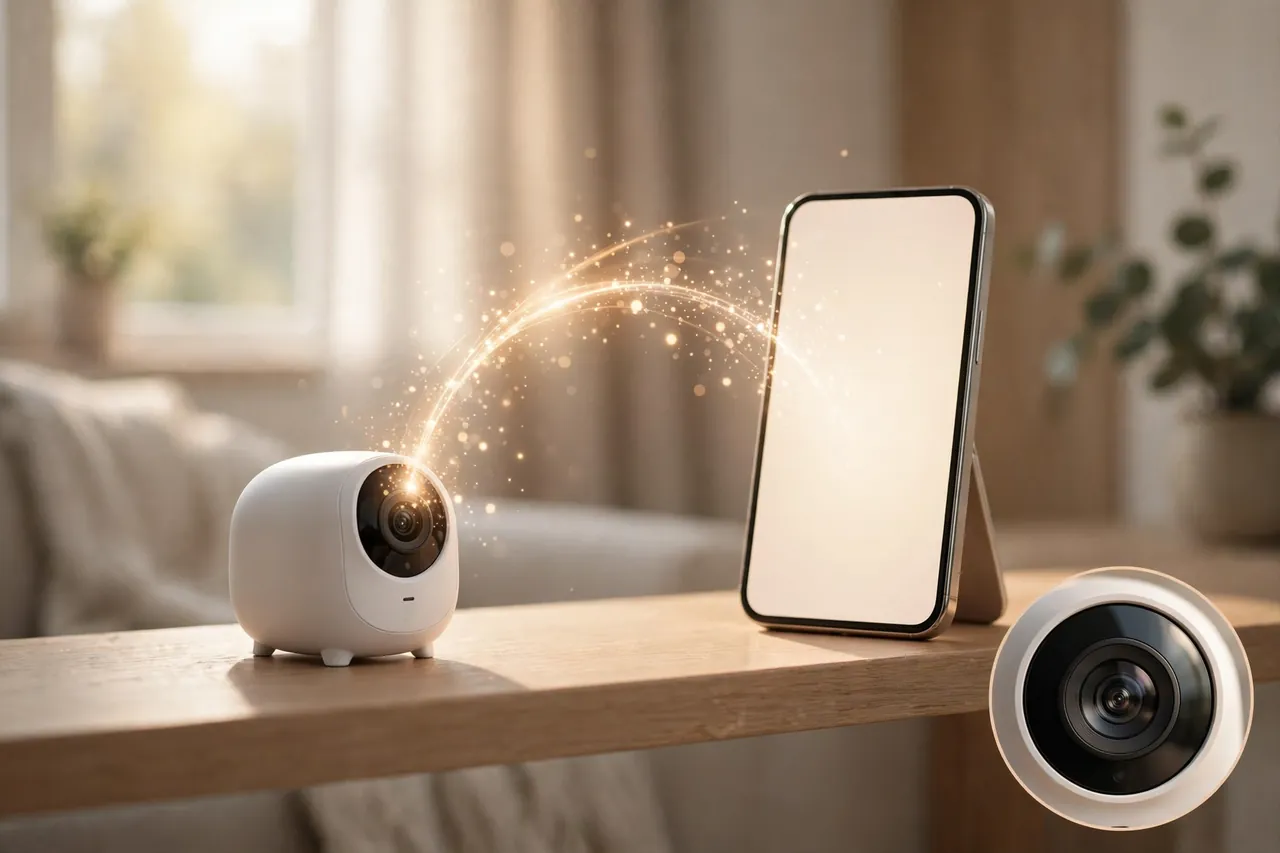
A cloud camera follows the same five steps every time it records something. Once you see the chain, every plan, price, and problem in this guide makes more sense.
- The camera watches and waits. It stays alert for motion or sound, or it records all the time if you pay for continuous recording.
- Something triggers a recording. A person walks past, a package lands on the porch, or a car pulls into the driveway. The camera starts saving video.
- The camera squeezes the video down. It compresses the footage with a standard format called H.264 or the newer H.265, so the file stays small enough to upload without choking your internet.
- The clip uploads to the cloud. The camera sends the encrypted video over your Wi-Fi and your internet connection to the company’s servers.
- You get an alert and open the app. Your phone buzzes, you tap the alert, and the app streams the clip back down from the cloud.
Live view works a little differently. When you open the app and tap a camera, the camera streams video straight to your phone in real time. That stream usually stays free, even without a paid plan. What the plan buys you is the recording: the saved history you can rewind, download, and share later.
Smart detection happens in the cloud, too. When a clip arrives on the company’s servers, software checks it and labels it: person, package, vehicle, or animal. That is why a cloud camera can tell you “a person is at your front door” instead of just “motion detected.” The detection is only as good as the plan, though. On Ring cameras, for example, person and package alerts need a paid plan.
Cloud Storage vs Local Storage: The Honest Comparison
Cloud storage and local storage solve the same problem in opposite ways. Cloud storage puts your video on someone else’s servers. Local storage keeps it in your house, on a memory card in the camera or on a recorder’s hard drive. Neither one is better for everyone. The right choice depends on what worries you more: losing footage to a thief, or paying a monthly fee and trusting a company with your video.
This table is the citation module for this article. It compares the two options side by side, built from the verified facts in this guide.
| Feature | Cloud storage | Local storage |
|---|---|---|
| Where video lives | Company servers, reached by app | Memory card or recorder in your home |
| Survives camera theft | Yes, uploaded clips stay safe | No, the card often goes with the camera |
| Monthly cost | About $5 to $20 a month, by brand and plan | $0 after you buy the card or recorder |
| Works without internet | No new uploads; some models buffer briefly | Yes, it keeps recording while powered |
| How long clips last | Fixed window: 30, 60, or up to 180 days | Until the card or drive fills, then it overwrites |
| Privacy | Video sits on company servers | Video stays inside your house |
| Setup effort | Minutes, no extra hardware | More setup, card or recorder to manage |
Cloud storage wins on convenience and safety from theft. You can check your cameras from work, from vacation, or from the couch. If a burglar rips a camera off the wall, the clip of them doing it is already uploaded. You never run out of space at home, because the company holds the storage. And you never lose footage to a dead hard drive in your closet.
Local storage wins on cost and control. You pay once for a memory card or a recorder, and then you pay nothing month after month. Your video never leaves your house, so no company holds it. And your cameras keep recording through an internet outage, as long as they still have power. Our guide to a NVR security system explains the local-recorder route in full, and a security camera with a monitor shows the simplest way to watch local footage at home.
Many homes end up with a mix. Some cameras record to the cloud and to a memory card at the same time. That hybrid setup covers both risks: the cloud copy survives theft, and the card copy survives an internet outage. If you hate monthly fees entirely, start with our guide to a security camera without a subscription. It shows which cameras record fully with no plan at all.
What Do Cloud Camera Plans Cost?
Cloud camera plans are subscriptions, and the price depends on the brand and on how many cameras you own. The camera itself is a one-time buy. The plan is the ongoing cost, and it is the number most buyers forget to budget for. Prices change often, so check the provider’s own pricing page before you pay. The prices below were checked on the providers’ own pages on 6 November 2026.
| Brand and plan | Monthly price | Yearly price | Video history |
|---|---|---|---|
| Ring Solo (1 device) | $4.99 | $49.99 | Up to 180 days |
| Ring Multi (all devices, one home) | $9.99 | $99.99 | Up to 180 days |
| Ring Pro (all devices + monitoring) | $19.99 | $199.99 | Up to 180 days |
| Google Home Premium Standard | $10 | $100 | 30 days of events |
| Google Home Premium Advanced | $20 | $200 | 60 days + 10 days of 24/7 video |
| Reolink Cloud Standard (up to 5 cameras) | $6.99 | Not listed | 30 days |
Ring’s plans are the simplest to follow. Ring Solo covers one doorbell or camera for $4.99 a month or $49.99 a year, and Ring Multi covers every Ring device at one address for $9.99 a month or $99.99 a year. Ring Pro costs $19.99 a month or $199.99 a year and adds 24/7 professional monitoring for a Ring Alarm. All three keep video for up to 180 days. Ring’s own blog lays out the current plans at Ring Protect plans compared.
Google’s plan, now called Google Home Premium, replaced Nest Aware in late 2025. Standard costs $10 a month or $100 a year and keeps 30 days of event video for every Nest camera and doorbell in your home. Advanced costs $20 a month or $200 a year, stretches event history to 60 days, and adds 10 days of continuous 24/7 recording on supported wired cameras. Google lists both tiers on its Google Home Premium page.
Reolink works differently, and the difference matters. Reolink Cloud is optional, and most Reolink cameras record to a memory card or recorder for free. The Standard cloud plan costs $6.99 a month for up to 5 cameras with 30 days of history and 30 GB of shared storage, according to Reolink’s own blog. But Reolink’s current US cloud plans apply mainly to select 4G cameras and video doorbells, and cameras added to a Reolink Home Hub do not support Reolink Cloud at all. If you buy a Wi-Fi or PoE Reolink camera, plan on local storage. Reolink explains the setup on its Reolink subscription cost page.
Do the five-year math before you buy. One Ring camera on Solo costs about $250 over five years at the yearly rate. Three Ring cameras on Multi cost about $500 over five years. A Google household on Standard costs about $500 over five years, no matter how many Nest cameras you own. That is why the per-camera plans punish big setups, while the whole-home plans reward them. If you own two or more cameras from the same brand, the all-devices plan almost always wins.

Do You Need a Subscription for a Cloud Camera?
No, a cloud camera still works without a subscription, but it loses the feature that makes it a cloud camera: saved video. Without a plan, you can usually watch live video, get motion alerts, and talk through the camera. What you cannot do is rewind. If something happened at 2 a.m. and you check at 8 a.m., there is nothing to watch.
Ring keeps live view, real-time motion alerts, two-way talk, and motion zones free with no plan. It saves no video at all. Google gives you a short free window instead: most Nest models keep about 3 to 6 hours of recent event history with no plan. That covers “what just happened,” not “what happened last Tuesday.”
So the honest answer is this. If you only want to peek at the front door when someone rings, or check on the dog while you are at work, a cloud camera with no plan does the job. If you want proof after a break-in, a package theft, or a dispute with a neighbor, you need a plan, or you need a camera that records locally for free. That is the whole decision. Our guide to the best video doorbell without a subscription walks through the no-fee options doorbell by doorbell.
What Happens When the Internet Goes Down?
When your internet drops, a cloud-only camera stops uploading. That is the single biggest weakness of cloud recording, and every buyer should understand it before they rely on these cameras alone.
Here is what stops: new clips stop uploading to the cloud, live view from outside your home stops working, phone alerts stop arriving, and smart detection stops, because the detection runs on the company’s servers. Your camera may still have power and may still see everything. It just cannot send any of it anywhere.
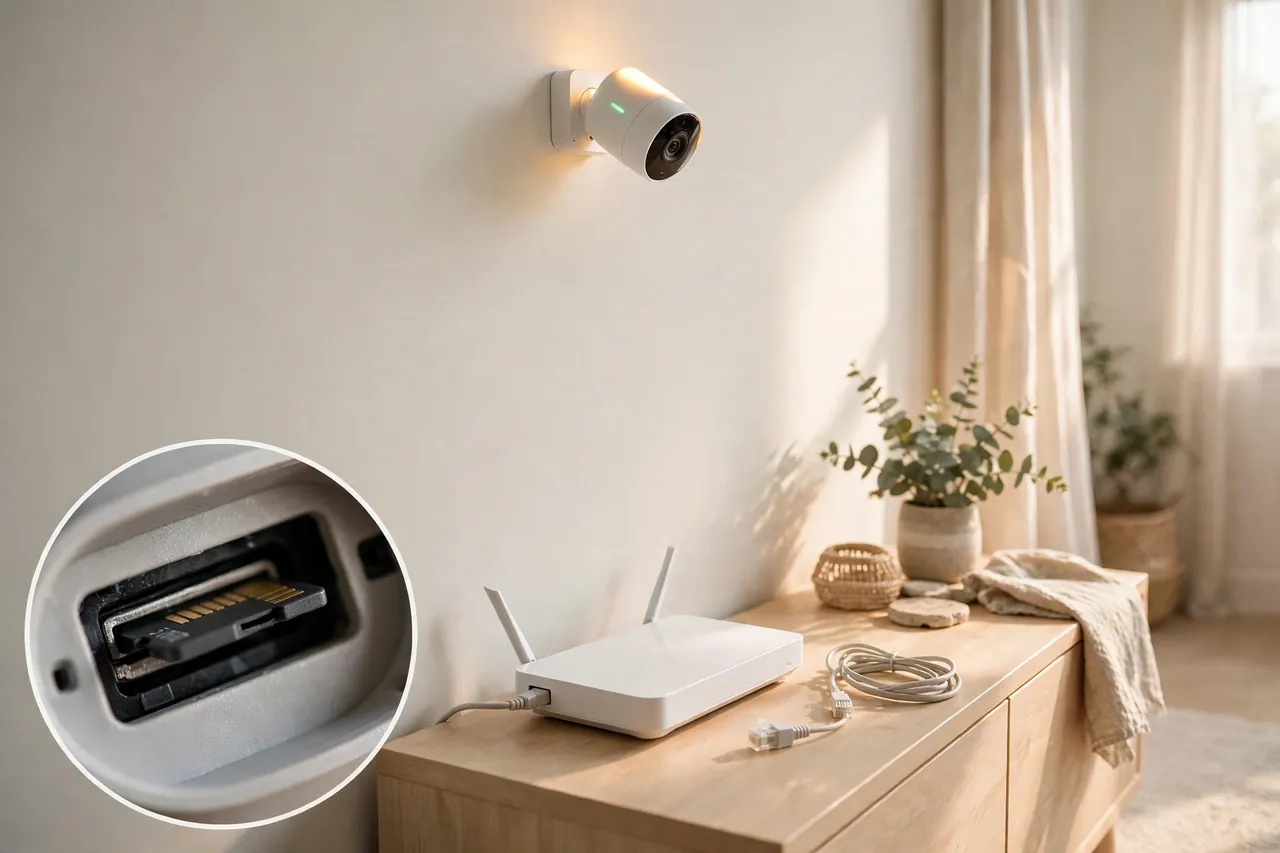
Here is what can save you. Some cloud cameras also record to a memory card inside the camera. Those keep recording through an outage, and they upload the saved clips once the internet returns. A few models hold a short buffer of events in built-in memory and upload them after reconnecting. But this backup is model-specific. Plenty of popular cloud cameras have no card slot and no buffer at all. With those, an outage leaves a blank gap in your video history, and nothing brings it back.
Power matters just as much. A plug-in camera dies with a power cut, cloud or not. A battery camera keeps going until its battery runs out. A camera with a solar panel can stretch much longer outdoors. So the real question is not only “what if the Wi-Fi drops” but “what if the power drops, too.”
Protect yourself with three simple habits. First, pick at least one camera with a memory card slot for the spot that matters most, usually the front door or driveway. Second, put your router and modem on a small battery backup so a short power blip does not kill your Wi-Fi. Third, test it once: unplug your router for five minutes, then check what your cameras saved. You will learn more from that one test than from any spec sheet. If your cameras record nothing without Wi-Fi, our guide to security cameras without WiFi shows the alternatives that keep working offline.
Is a Cloud Camera Safe? Privacy and Security
A cloud camera is safe when you set it up right, and it is a real risk when you do not. The camera itself is not the weak point. Your account is. Someone who gets into your camera account can watch your home from anywhere, so treat that account like your bank login.
The U.S. Federal Trade Commission gives camera owners four clear steps. First, use a strong password that you have never used anywhere else, and never leave the camera’s default username and password in place. Second, turn on two-factor authentication for the cloud account when the brand offers it. That way a stolen password alone is not enough to get in. Third, keep the camera’s firmware and the app updated, because updates close security holes. Fourth, secure your home router with a strong password and WPA3 or WPA2 encryption, and make sure any browser login starts with https.
Privacy is a separate question from hacking. Your video lives on the company’s servers, and the company’s privacy policy decides who can see it and how long it stays. Read that policy before you buy, not after. Check three things: whether the company shares video with police without your permission, whether employees can view your clips, and how you delete video for good. If a policy is vague on any of those points, take it as a warning.
Placement is the privacy step most people skip. Never put a cloud camera in a bedroom or bathroom, even your own. A camera in a private room is a risk no plan can fix. Keep indoor cameras in shared spaces like the living room or entryway, and tell everyone in the house where they are. For indoor spots, a wireless indoor security camera works well in a main living area, where it watches the room without watching anyone’s private moments.
One more honest note: encryption helps, but it is not magic. Most brands encrypt your video while it travels and while it sits on their servers. That stops strangers from snooping on the wire. It does not stop the company itself from holding your video, and it does not stop a weak password from handing your account away. Strong account habits matter more than any encryption label on the box.
How to Set Up a Cloud Camera
Setting up a cloud camera takes about fifteen minutes. The app walks you through it, but these steps keep you from the mistakes that cause most support calls.
- Check your Wi-Fi first. Stand where the camera will go and run a speed test on your phone. If the signal is weak there, move your router closer or add a Wi-Fi extender before you mount anything.
- Charge or plug in the camera. Charge a battery camera fully before setup. Plug in a wired camera and wait for its status light to blink, which means it is ready to pair.
- Download the brand’s app and create your account. Use a strong, unique password and turn on two-factor authentication right away, before you add any cameras.
- Add the camera in the app. Scan the QR code on the camera or in its box, then follow the prompts to join your Wi-Fi network. Keep the camera close to the router for this step, then move it to its final spot.
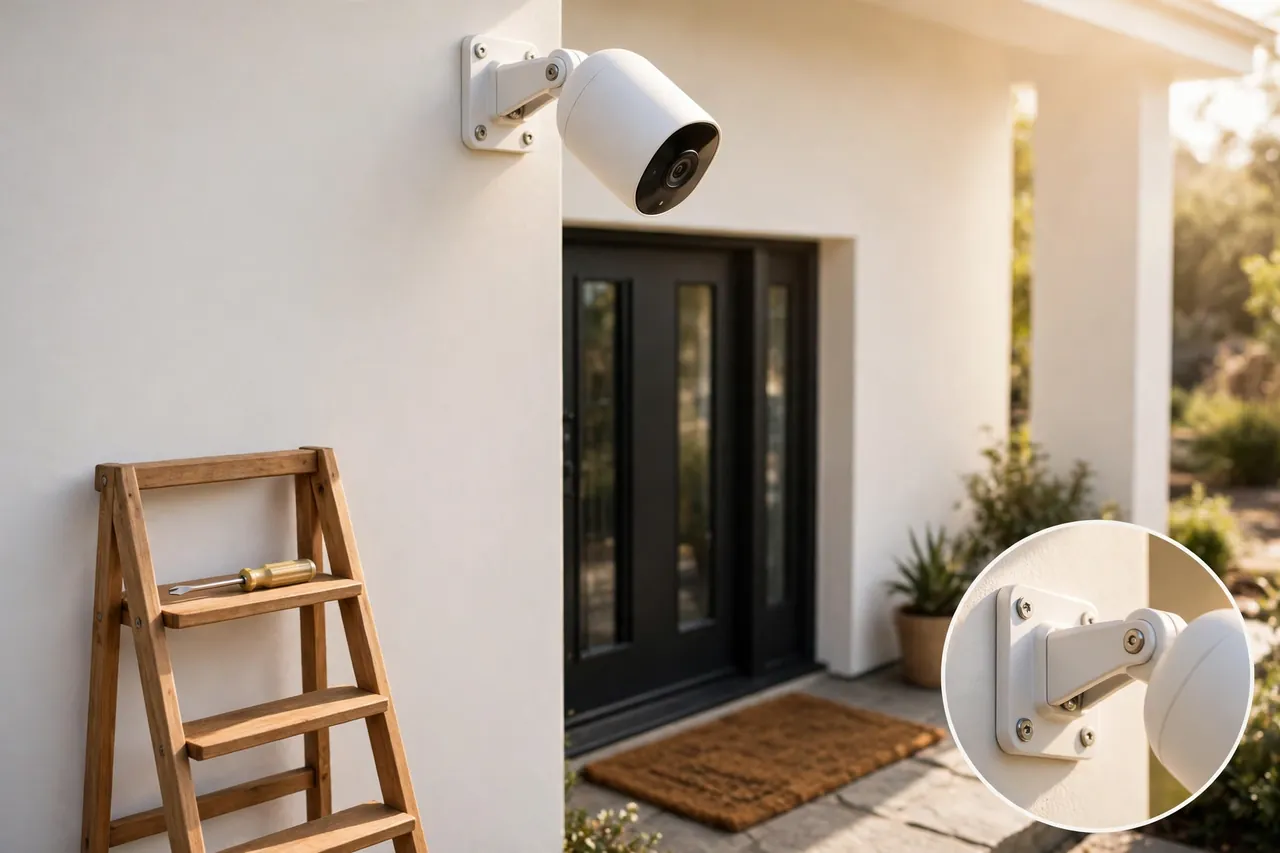
- Mount it at the right height. Aim outdoor cameras about 7 to 9 feet high, angled slightly down, so they catch faces instead of the tops of heads. Test the view in the app before you tighten the screws.
- Set your motion zones and alerts. Draw a zone around the walkway or driveway and exclude the street, or every passing car will buzz your phone. Turn on person detection if your plan includes it.
- Pick your plan and retention. Choose the subscription tier that fits your camera count, and set how long clips stay before they delete. Then record a short test clip and watch it back in the app.
If the camera will not connect, the fix is almost always the Wi-Fi band. Most cloud cameras use the 2.4 GHz band, which reaches farther than 5 GHz. If your router merged both bands into one network name, split them in the router settings or move the camera closer to the router and try again.
Cloud Camera Mistakes to Avoid
Most cloud camera regret comes from five avoidable mistakes. Skip them and the system just works.
Buying the camera and forgetting the plan. A $40 camera with a $10 monthly plan costs $160 in the first year. Budget the plan first, then pick the camera that fits what is left.
Putting every camera on the cheapest per-camera plan. Two cameras on single-device plans usually cost more than one whole-home plan. Count your cameras, then compare the totals.
Pointing a camera at the street. You will drown in alerts and burn through your upload bandwidth. Aim at your own walkway, porch, and driveway. Let the street stay out of the zone.
Never downloading the clip that matters. Cloud clips delete themselves when the retention window ends. If something important happens, download the clip to your phone the same day. A 30-day window sounds long until you need a clip from day 31.
Sharing the account password with the whole household. Give each person their own login or shared-user access in the app instead. When someone moves out or loses a phone, you can remove their access without changing the password for everyone.
Who Should Buy a Cloud Camera — and Who Should Not
A cloud camera fits you well if you travel, rent, or want security without extra hardware. Renters love them because there is nothing to wire and nothing to leave behind. Travelers love them because they can check the house from another state. And anyone who wants footage to survive a break-in should want at least one cloud camera watching the main entry.
A cloud camera fits badly if your internet is slow or unreliable, if you own many cameras, or if you refuse to pay a monthly fee on principle. Rural homes with weak upload speeds will see delayed clips and missed events. A six-camera setup on per-camera plans can cost more each year than a local recorder that lasts a decade. And if keeping video inside your own house matters more than remote access, local storage is the honest answer.
The middle path works for most homes. Put a cloud camera at the front door and the driveway, where theft protection matters most. Put local-storage cameras in the backyard or garage, where a monthly fee buys you little. Link the two systems through the guides below, and you get the best of both without paying for either twice. If you want someone else to watch the alerts for you, read our guide to home security systems self-monitoring first, so you know what you give up and what you gain.
Camera features like pan-and-tilt movement, night vision, and two-way audio change which model to buy, not whether cloud storage is right for you. If those features matter, compare them in their own guides: pan tilt zoom security camera, night vision security cameras, security cameras with audio, and outdoor motion activated camera.
Related Guides
Security Camera With Monitor: The Complete Guide to Monitor-Included Systems · NVR Security System: What It Is, How It Works, and How to Choose One for Your Home · Wireless Indoor Security Cameras: A Simple Guide for Your Home
- Security Camera Without Subscription: No Monthly Fee, Full Protection
- NVR Security System
- Security Camera With a Monitor
- Best Video Doorbell Without Subscription
- Security Cameras Without WiFi: How They Work and What to Buy
- Home Security Systems Self-Monitoring
Frequently Asked Questions
What Is a Cloud Camera?
A cloud camera is a security camera that connects to the internet to record and stream high-resolution video. Most shoot in 1080p, though 2K and 4K models are now common. When motion is detected, the camera records and uploads the clip to the company’s servers, so you can watch it from anywhere in the app.
How Cloud Cameras Work?
A cloud camera connects to your home Wi-Fi, then records when it detects motion or sound. It compresses the video, encrypts it, and uploads it to the provider’s servers over your internet connection. You get a phone alert and can watch the clip at once in the app or on the provider’s website.
Are cloud-based security cameras secure?
Yes, most cloud cameras use strong encryption to protect your video from unauthorized access. But your account is the real weak point. Use a unique password, turn on two-factor authentication, keep firmware updated, and secure your router. A camera with a weak password is not secure, no matter how good its encryption is.
Do cloud-based cameras work without Wi-Fi?
No, a cloud camera needs a stable internet connection to upload footage to the cloud. Without Wi-Fi, you lose live view, alerts, and new cloud clips. Some models keep recording to a memory card during an outage and upload later, but that backup is model-specific, so check the specs before you buy.
How much storage does a cloud camera need?
It depends on resolution, frame rate, and how long you record. Most providers sell plans by time, not gigabytes: 30, 60, or up to 180 days of event history. A single camera on an event-only plan uses far less storage than one recording around the clock, so match the plan to how your camera records.
Are there free cloud storage options?
Yes, but they are limited. Google keeps about 3 to 6 hours of recent event history free, and some brands offer a short free trial or a few days of clips. For longer history, smart detection, and continuous recording, you need a paid plan, usually $5 to $20 a month depending on the brand.
How long is security footage stored in the cloud?
It depends on your plan. Ring keeps video for up to 180 days, Google keeps 30 days on Standard and 60 days on Advanced, and Reolink’s Standard plan keeps 30 days. When the window ends, old clips delete automatically. Download any clip that matters before its window runs out.
A cloud camera earns its keep when you buy it for the right reason: footage that survives theft, checks from anywhere, and no recorder to babysit. Pick the plan before you pick the camera, test what happens when the Wi-Fi drops, and lock down your account on day one. Do those three things, and your cloud camera will do its job quietly for years.