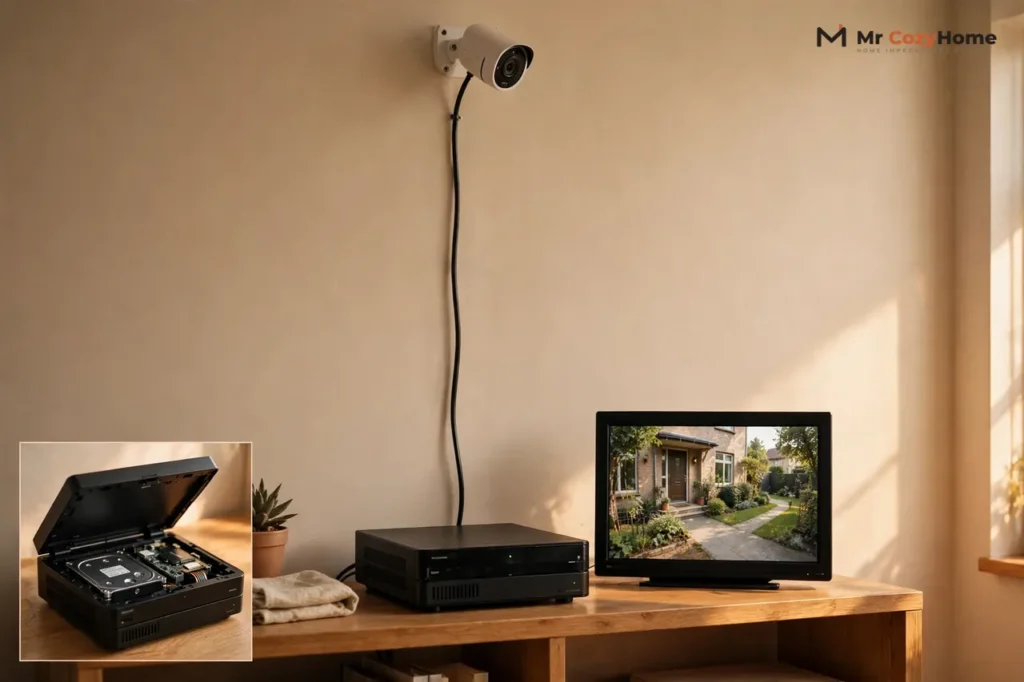
An NVR security system is a home camera setup built around a network video recorder. The recorder saves video from your IP cameras onto a hard drive inside your home, so you can watch live video and play back past footage with no monthly fee. It is the best choice when you want several cameras, weeks of continuous recording, and footage that stays in your house.
Think of the NVR as the brain of the system. Each camera films its own video, sends it over a cable to the recorder, and the recorder stores it, organizes it by time and camera, and lets you find any moment in seconds. You do not need the cloud, and you do not need a subscription, for the core job to work.
This guide explains what an NVR is, how it differs from a DVR, what PoE means, how much storage you really need, and how to pick the right size for your home. By the end, you will know exactly which system fits your house and your budget.
What Is an NVR Security System?
NVR stands for network video recorder. An NVR security system is a complete setup: IP cameras, Ethernet cables, a recorder box with a hard drive, and an app or monitor for viewing. The cameras connect to the recorder over your home network, usually by cable, and the recorder saves everything they film.
Here is the key detail that makes an NVR different. Each IP camera does its own video work. The camera captures the picture, compresses the video, and sends a finished digital stream to the recorder. The recorder mostly stores and organizes that stream. Reolink explains it the same way in its guide to what an NVR is: the cameras encode the video, and the NVR saves it to a hard drive and lets you search, play back, and view it remotely.
Because the video stays digital from the camera to the recorder, NVR systems support sharp video, often 4K, and smart features such as person, vehicle, and pet detection. Most home NVR kits include four to eight cameras and one recorder with a 2TB hard drive already installed.
An NVR system suits a house with several doors, a driveway, and a yard to cover. It suits you if you want footage saved for weeks, not just short clips, and if you would rather own your recordings than rent cloud space each month.
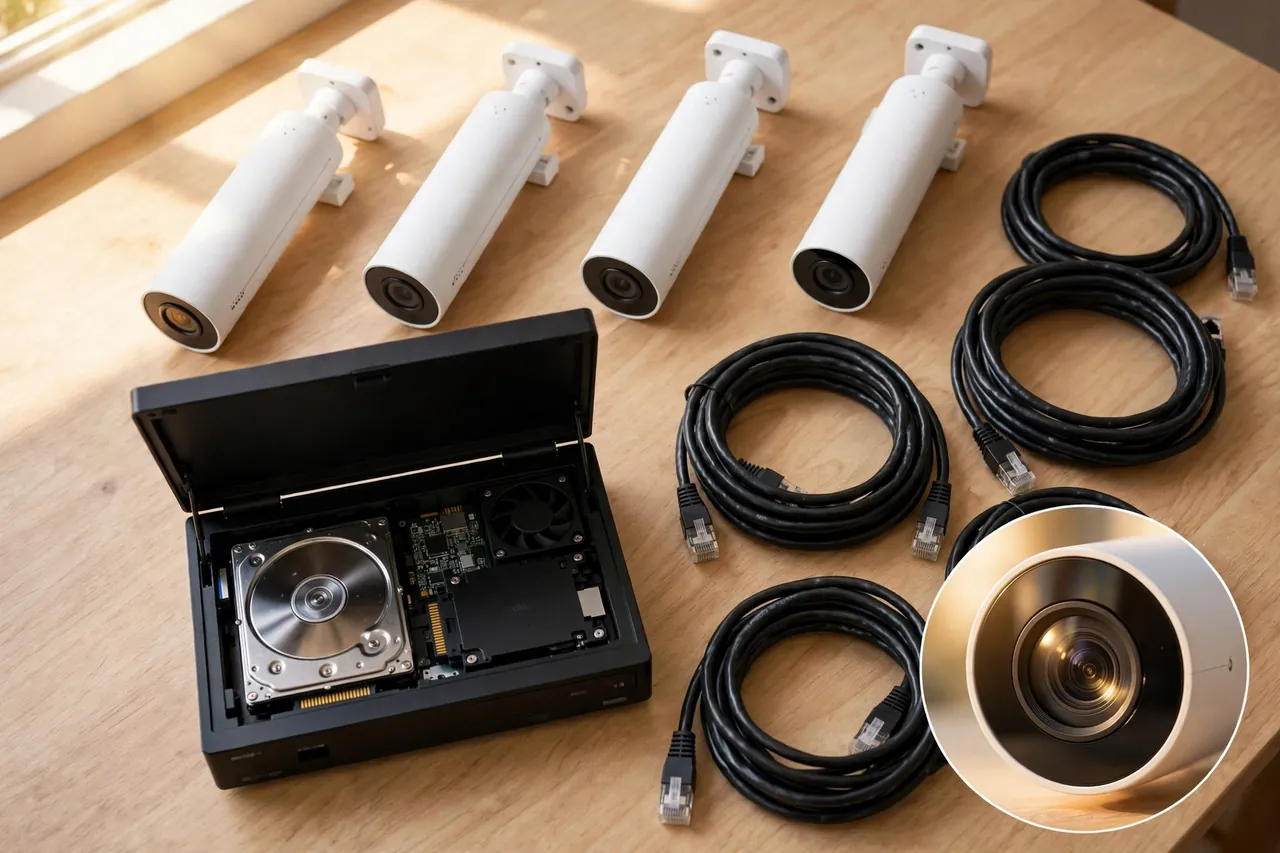
How an NVR System Works
An NVR system follows four simple steps, and they run on their own once you set them up.
- Film. Each IP camera watches its spot and turns what it sees into a digital video stream. Most cameras also record sound if they have a microphone.
- Send. The camera sends its stream over an Ethernet cable to the NVR. On a PoE system, that same cable also powers the camera, so there is no plug at each camera.
- Store. The NVR writes every stream to its hard drive, labeled by camera and time. When the drive fills up, it records over the oldest footage first, so recording never stops.
- View. You watch live video on a monitor plugged into the NVR, or on your phone through the maker’s free app. You can search by date, time, or motion event and export a clip when you need one.
The recorder sits inside your home, usually near your router or TV. Keep it somewhere safe, such as a cupboard or a locked room, not beside the front door. If a burglar can grab the recorder in ten seconds, the footage goes with it.
One more point matters. The NVR itself is not a camera. It records and manages video, but it sees nothing on its own. Every camera you add connects to it as one channel, and the channel count sets the hard limit on how many cameras the system can hold.
NVR vs DVR: What’s the Difference?
People mix up NVR and DVR systems, and the names sound alike. The difference comes down to the cameras and the cable between the camera and the recorder.
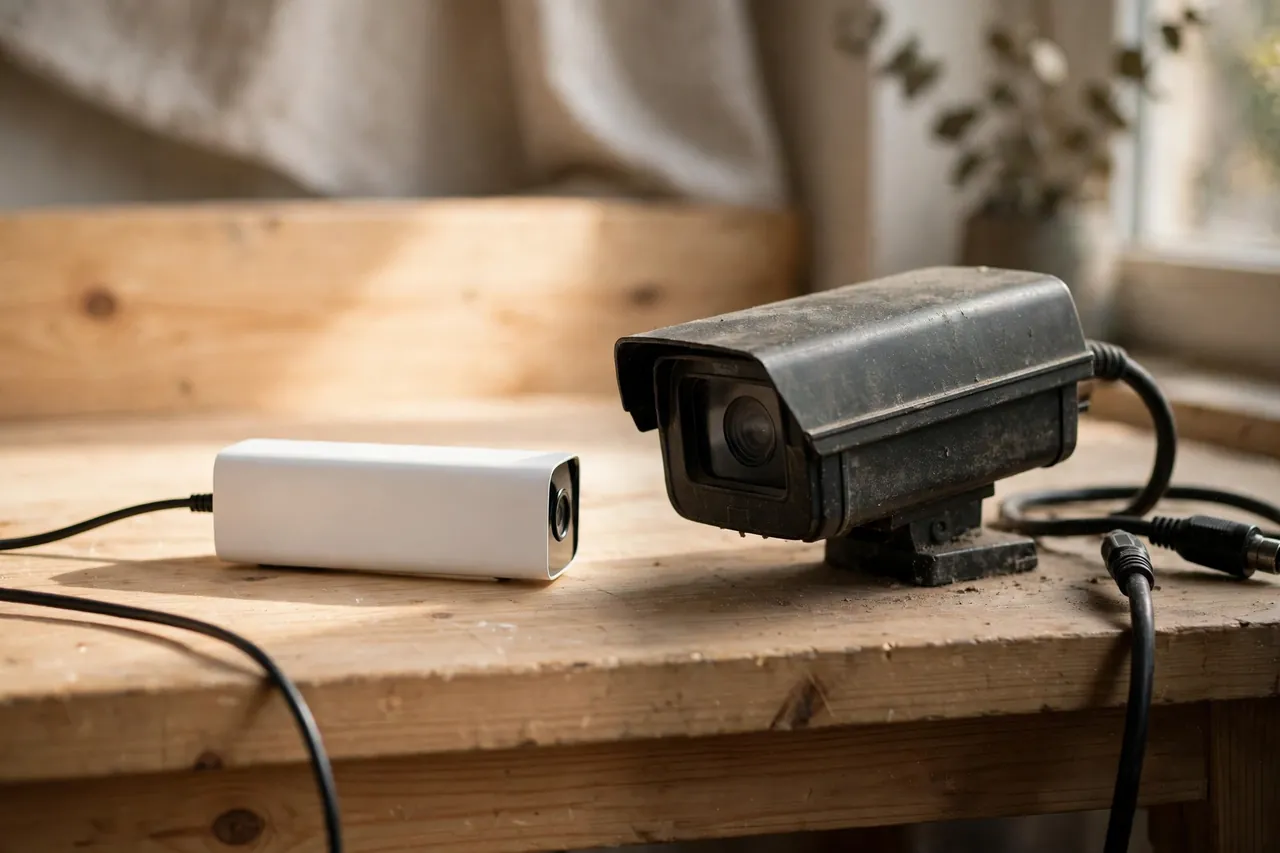
A DVR, or digital video recorder, works with older analog cameras. The camera sends raw video over a coax cable, and the DVR does the encoding work inside the recorder. An NVR works with digital IP cameras, and each camera encodes its own video before sending it over a network cable.
NVR vs DVR at a glance
| Feature | NVR (Network Video Recorder) | DVR (Digital Video Recorder) |
|---|---|---|
| Cameras | Digital IP cameras | Analog cameras over coax cable |
| Video quality | Up to 4K and beyond | Usually lower, often 1080p |
| Cabling | One Ethernet cable per camera for power and video | Coax cable for video plus a separate power cable |
| Where video is encoded | At each camera | Inside the recorder |
| Remote viewing | Built in through the app | Possible, but often harder to set up |
| Best for | New systems and most homes today | Old analog systems you already own |
For a new system, choose an NVR. It gives you sharper video, simpler cabling, and easier remote viewing. A DVR only makes sense when you already have analog cameras wired through the house and want to keep them. Even then, weigh the cost of a new DVR against a fresh NVR kit, because the NVR will serve you longer.
What Is PoE, and Why Does It Matter?
PoE stands for Power over Ethernet. It means one Ethernet cable carries both power and video between the camera and the recorder. You plug one end into the camera and the other into the NVR’s PoE port, and the camera turns on and starts sending video. No outlet at the camera, no power adapter on the wall, no second cable to run.
This matters for three reasons. First, installation is simpler. You run one cable per camera, and you can place a camera anywhere the cable reaches, even far from an outlet. Second, the connection is steady. A wired camera does not drop off when Wi-Fi gets weak at the far end of the yard. Third, the system keeps working during a Wi-Fi outage, because the cameras and the recorder talk over their own cables.
Most home NVR kits are PoE systems. The NVR has built-in PoE ports on the back, usually 4 or 8, one per camera. If you buy a recorder with more channels than PoE ports, you add a separate PoE switch to connect the extra cameras, as long as you stay within the channel count.
Watch out for one detail. Some cameras sold as “NVR compatible” are Wi-Fi cameras, not PoE cameras. They still need a power source, usually a plug or a battery, and they use your Wi-Fi instead of a cable. If you want the one-cable setup, check the box for “PoE” before you buy.
How Many Channels Do You Need?
One channel equals one camera. An 8-channel NVR records up to eight cameras, and no more, even if you plug in extra switches. The channel count is a hard limit set in the recorder’s software.
Home NVRs come in standard sizes: 4, 8, 16, 32, and 64 channels. For most homes, the choice is between 4 and 8. Reolink’s own guide puts it plainly: a 4-channel or 8-channel NVR fits a small suburban home, while a large home or small business may need 16 channels.
Use this simple map to size your system:
- 4 channels: a small home or apartment with two to four cameras, such as the front door, back door, and driveway.
- 8 channels: a standard single-family home with five to six cameras, covering all four sides of the house plus the driveway and porch, with room to grow.
- 16 channels: a large multi-story home or rural property with nine to twelve cameras, including outbuildings or a long driveway.
Buy one size up from what you need today. If you plan six cameras, buy an 8-channel recorder, not a 6-channel one, because recorders do not come in 6-channel sizes anyway. The spare channels cost little now and save you from replacing the whole recorder when you add a camera next year. Most homeowners add cameras within the first year, once they see the blind spots.
Also check the recorder’s incoming bandwidth, listed on the spec sheet in Mbps. Each camera uses part of that budget. Add up your cameras’ bitrates and keep the total at least 20 percent below the recorder’s limit, or streams will stutter and drop.
Hard Drive Storage: How Many Days of Footage Will You Get?
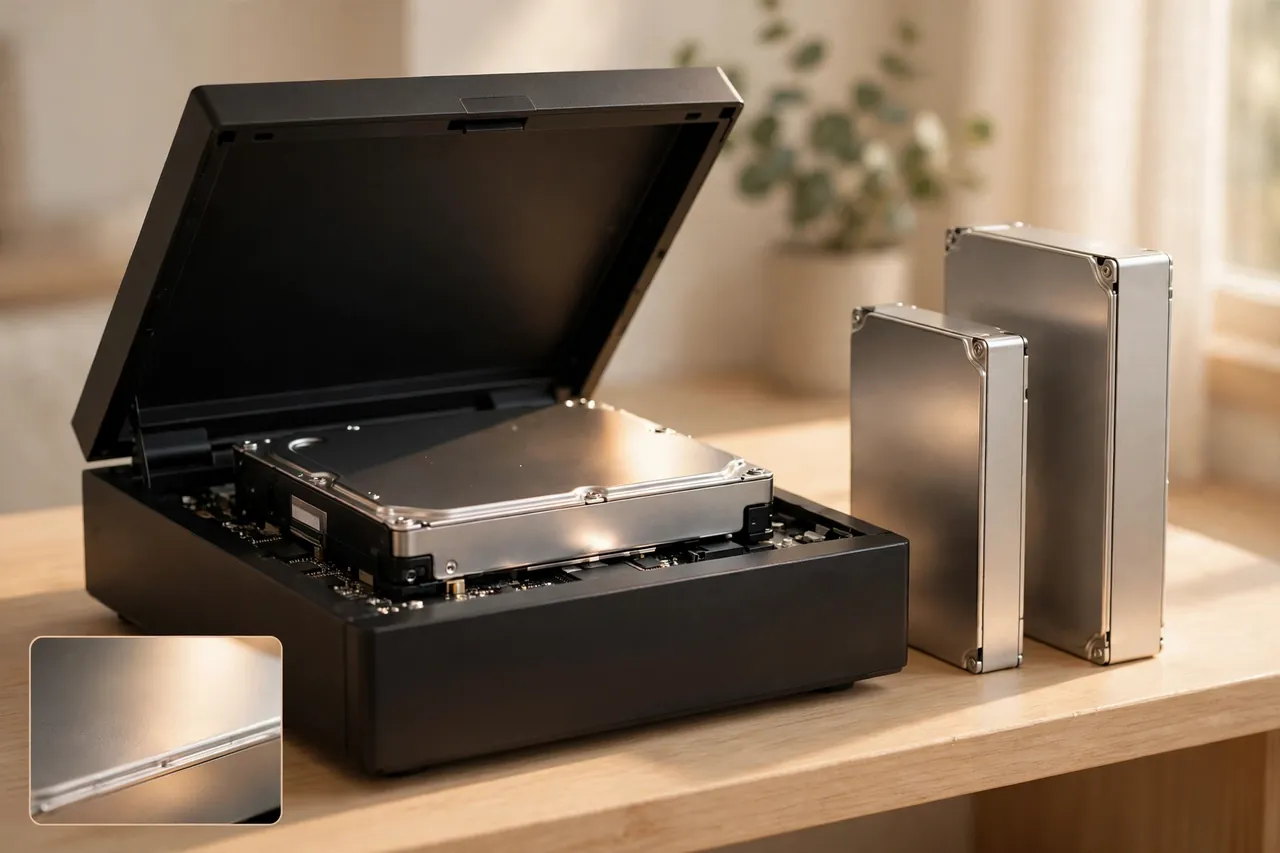
The hard drive decides how far back you can look, not whether you record. When the drive fills, the recorder loops and writes over the oldest footage, so you always keep the most recent days up to what the drive can hold.
Three things set how long footage lasts: the number of cameras, the resolution, and whether you record all the time or only on motion. Higher resolution eats storage fast. A 4K camera writes roughly four times as much data as a 1080p camera.
Here are estimated days of continuous 24/7 recording in H.265, the modern compression most new systems use. These figures come from a surveillance drive guide based on Hikvision’s recommended H.265 settings at 25 frames per second, and real results vary with scene activity and your settings. Treat them as estimates, not promises.
Estimated days of continuous recording on one hard drive
| System | 2TB drive | 4TB drive | 8TB drive |
|---|---|---|---|
| 4 cameras, 1080p | About 22 days | About 45 days | About 90 days |
| 4 cameras, 4MP | About 11 days | About 22 days | About 45 days |
| 4 cameras, 4K | About 5 days | About 11 days | About 22 days |
| 8 cameras, 1080p | About 11 days | About 22 days | About 45 days |
| 8 cameras, 4K | About 2 days | About 5 days | About 11 days |
Eufy gives a matching rule of thumb on its own NVR page: a 2TB drive typically stores 10 to 20 days of continuous 4K footage, and its NVR systems expand up to 16TB. So if you want a month of 4K video from four cameras, plan on at least an 8TB drive, or switch to motion recording.
You can also work out the math yourself. One camera recording at 2 Mbps uses about 21.6 GB per day. Multiply by your camera count, then divide the drive size by that daily total. For example, four cameras at 2 Mbps use about 86 GB a day, so a 2TB drive (about 2,000 GB) holds roughly 23 days.
Two practical tips. First, buy a surveillance-rated hard drive, such as a WD Purple or Seagate SkyHawk, made for writing video around the clock. A regular desktop drive wears out faster under constant writes. Second, decide how many days you want to keep first, then pick the drive size. Most homes aim for two to four weeks.
24/7 Recording vs Motion Recording
Every NVR lets you choose how it records, and the choice changes both storage and what you can find later.
Continuous 24/7 recording saves everything, all day and night. You never miss a moment, even one with no motion to trigger it, and you can scroll back to any time. The cost is storage: it fills the drive fastest, as the table above shows. Choose this mode when you want complete proof of what happened, such as at a front door or a driveway.
Motion recording saves only when the camera sees movement. It stretches storage much further, often doubling how many days the drive holds, and it makes review faster because you jump from event to event instead of scrubbing hours of empty video. The risk is a missed moment if the motion sensor fails to trigger, or if the detection zone misses a spot.
Many homeowners mix the two. They run 24/7 recording on the front door and driveway cameras, and motion recording on quieter spots such as the backyard. Smart detection helps too: person, vehicle, and pet detection cut false alerts from trees and shadows, so motion recording only saves what matters.
Set your recording schedule in the NVR’s menu after setup, and check it after a week. Open the playback screen and confirm that footage exists for the times you expect. A schedule set wrong is the most common reason people find a gap when they need video.
Remote Viewing and the App
An NVR system gives you remote viewing through the maker’s free app, with no subscription needed for the basics. You open the app, tap a camera, and watch live video from anywhere. You get push alerts when the system detects a person or motion, and you can play back saved footage from your phone.
Remote viewing needs internet at the recorder, not at each camera. The NVR connects to your router with one Ethernet cable, and the app reaches it through the maker’s servers or a direct connection. If your broadband goes down, the system keeps recording locally, but live viewing and alerts pause until the connection returns. The footage itself is never at risk.
Set up remote viewing during installation, not later. Open the app while you are away from home Wi-Fi, on mobile data, and play back a clip. If it plays, remote access works. If it does not, fix it now, while the system is still in front of you.
Protect the system like any device on your network. Change the default password on the NVR and every camera, turn on two-factor authentication in the app if the maker offers it, and install firmware updates when they arrive. Cameras left on default passwords are the easiest target for intruders, and a strong password costs you nothing.
How to Choose the Best NVR Camera System for Your Home
There is no single best NVR camera system for every home. The right one matches your camera count, your cable runs, and how long you want to keep footage. Work through this checklist before you buy.
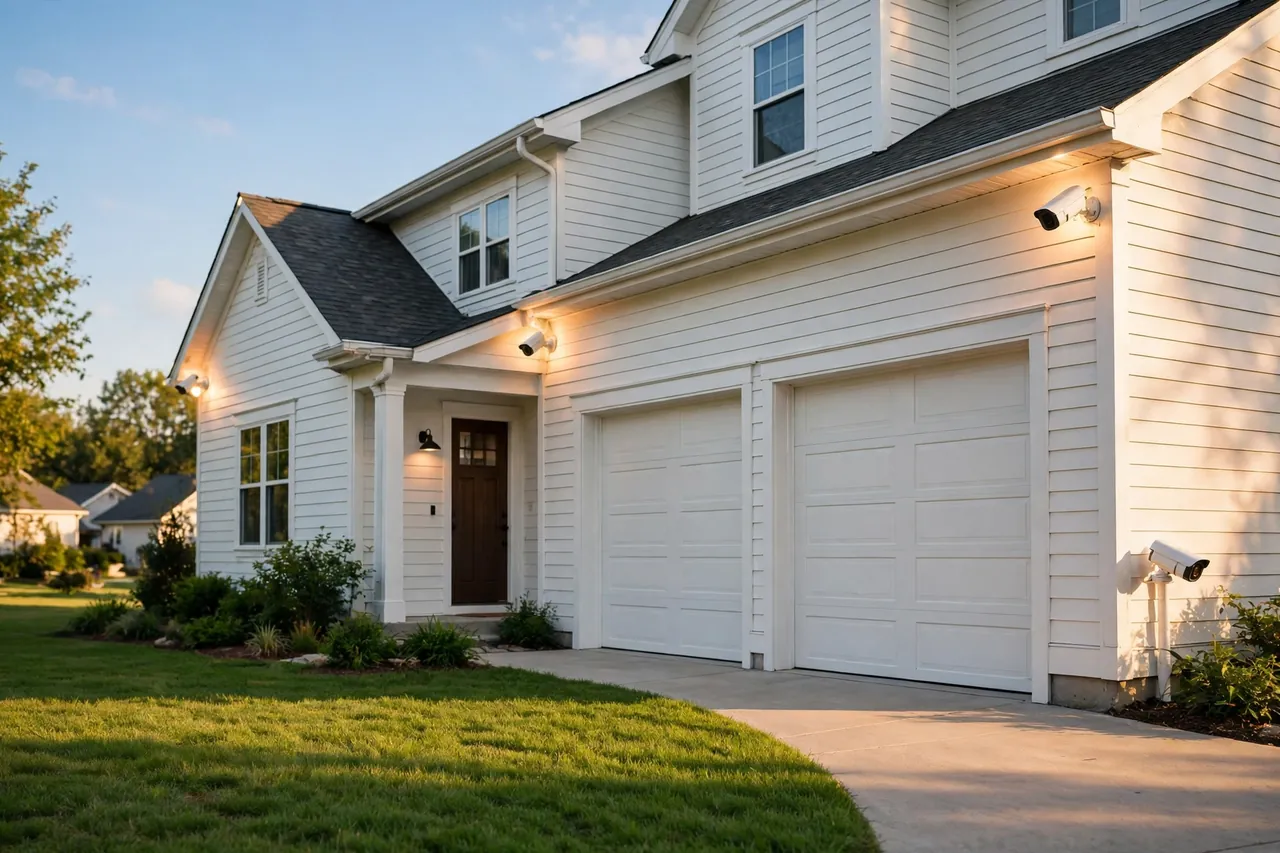
- Count your cameras. Walk the house and mark each door, driveway, and blind corner. Add one spare channel for the camera you will want later.
- Pick your resolution. 4K gives the sharpest faces and license plates, but it needs far more storage. 4MP is a good middle ground for most homes. 1080p still works for wide views where fine detail matters less.
- Check PoE ports. Make sure the recorder has a PoE port for each wired camera, or budget for a PoE switch to cover the extras.
- Size the hard drive. Decide how many days you want to keep, then use the storage table above. A 2TB drive is the common starting point, and many recorders expand to 8TB or 16TB.
- Confirm the smart features. Person, vehicle, and pet detection should run on the camera or the recorder with no plan. Check the fine print before you assume a feature is free.
- Check camera compatibility. Some NVRs only work with the same brand’s cameras. If you already own cameras, confirm they work with the recorder, or plan to buy a matched kit.
- Look at the app. Read recent app reviews before you buy. You will live in that app every day, and a clumsy app ruins a good system.
Matched kits are the easy route for a first system. A kit gives you the recorder, the cameras, the cables, and a hard drive that all work together, with no compatibility guessing. Mixing brands is possible, but only when both sides support the same open standard, such as ONVIF, and even then some smart features may not carry over.
How to Set Up an NVR System
Setting up an NVR system takes a few hours for a first-timer, most of it running cables. Follow these steps in order.
- Pick the camera spots first. Walk the house and mark each door, driveway, and blind corner. Stand where you plan to mount each camera and check the view with your eyes before you drill anything.
- Plan the cable path. Measure from each camera spot back to the recorder’s place. Keep cables away from sharp edges and hot pipes. If a run must pass through a wall or ceiling, get help if you have never drilled through a wall before.
- Mount the cameras. Fix each camera about 8 to 10 feet high, tilted slightly down, and out of easy reach. Point it so it sees faces and license plates, not just the tops of heads.
- Run the Ethernet cables. Plug one end into the camera and the other into the NVR’s PoE ports. Label both ends of every cable so you can trace a fault later.
- Connect the NVR to a monitor and your router. Plug the NVR into a TV or monitor with an HDMI cable, plug it into your router, then plug it into power. The cameras should appear on screen within a minute or two.
- Set the date, time, and recording mode. Choose continuous or motion recording for each camera, and set the clock correctly. Footage with the wrong time is hard to use as proof.
- Change the passwords and set up the app. Replace every default password, turn on two-factor authentication if offered, and test the app on mobile data away from home Wi-Fi.
- Test every camera. Walk past each one, check that it records, that the night view is clear, and that you can play the footage back. Fix the angle now, not after something happens.
If the cable work feels beyond you, hire a local installer for that part only. Running cables is a one-time job, and the rest of the setup is menus and an app. You can also read our guide to a security camera with a monitor if you want the viewing side explained in full, since the monitor is how most people watch an NVR day to day.
What an NVR System Costs
An NVR system costs more up front than a single Wi-Fi camera, and then almost nothing after that. Most home kits with four cameras and a 2TB drive sit in the few-hundred-dollar range, while larger 4K kits with eight cameras cost more. As one checked example, eufy lists its PoE NVR Security System S4 at $799.99 on its own US store, checked on November 6, 2026. Sale prices change often, so check the maker’s store on the day you buy.
There is usually no monthly fee. The recorder stores footage on its own hard drive, so you pay for the hardware once and own the recordings. Our guide to a security camera without a subscription explains the same no-fee logic across camera types, and an NVR is the strongest version of it: four or more cameras, weeks of video, zero monthly bill.
Budget for three extras beyond the kit. First, longer Ethernet cables if the kit’s cables are too short for your runs. Second, a bigger hard drive if you want more than a few weeks of 4K footage. Third, an installer for the cable work if you hire one out. None of these repeat each month.
Compare that with cloud cameras. A single camera on a $5-a-month plan costs $300 over five years, and that is for one camera only. Four cameras on a per-camera plan cost far more. The NVR’s up-front price starts to look small once you count the years.
Honest Limits: What an NVR Can’t Do
An NVR system is strong, but it is not magic. Know its limits before you buy, so none of them surprises you.
First, it has no cloud backup unless you set one up. If the recorder is stolen, or a fire or flood destroys it, the footage goes with it. Some systems let you back up clips to a cloud service or a second drive, but that is an extra you must configure, not a default. Keep the recorder hidden and locked away.
Second, it needs cables. A wired system is steady and reliable, but running Ethernet through walls takes real work, and renters may not be allowed to drill. If you cannot run cables, a hub-based wireless system may fit better.
Third, a camera only records what it sees. A doorbell camera watches the door from a different angle than a wall camera, and it answers the door too, which an NVR camera does not. If you want a doorbell in the mix, read our guide to the best video doorbell without a subscription and plan it as a separate piece beside the NVR.
Fourth, a camera alerts you. It does not dispatch police or sound an alarm through the house. That is the job of a monitored alarm system. If you want the full picture, our guide to burglar alarms covers how alarms and cameras work together.
Finally, an NVR system will not work without internet for remote viewing, even though it records fine offline. If your home has no broadband at all, read our guide to security cameras without WiFi, which covers offline recording and what you give up when the connection is gone.
Related Guides
Security Camera With Monitor: The Complete Guide to Monitor-Included Systems · Burglar Alarms: Types, Costs, and How to Choose the Right One · Security Alarm Panel: What It Is, How It Works, and How to Choose One
- Security Camera Without Subscription: No Monthly Fee — the four ways to store video at home for free, and the real five-year cost of paying monthly versus buying once.
- Security Cameras Without WiFi: 4 Ways They Work — how cameras record with no internet at all, and what you lose when the connection is gone.
Frequently Asked Questions
What is an NVR system?
An NVR, or network video recorder, system is a digital security setup that records and stores footage from IP cameras over a network. Each camera processes its own video and sends it over an Ethernet cable to the recorder, which saves it on a hard drive and lets you watch live video or play back past footage from a monitor or phone app.
Do NVR cameras work without internet?
Yes, an NVR keeps recording without internet because the cameras and the recorder talk over their own cables and the footage saves to the hard drive inside your home. What you lose without internet is remote viewing, mobile alerts, and cloud features. The recordings stay safe on the drive until the connection returns.
Are NVR cameras better than DVR?
Generally, yes. NVR cameras use digital IP technology, so they offer higher video quality, often 4K, smarter detection, and easier remote access than analog DVR cameras. DVR systems are simpler and cheaper, and they make sense only when you already own analog cameras and want to keep using them.
Do NVR systems have monthly fees?
No, most NVR systems have no monthly fees. They store footage locally on a built-in hard drive, so continuous 24/7 recording costs nothing after you buy the hardware. You only pay extra if you add an optional cloud backup plan or a larger hard drive later.
Do NVR cameras need WiFi?
Not necessarily. PoE NVR cameras connect straight to the recorder with an Ethernet cable that carries both power and video, so they need no WiFi at all. WiFi is only needed if you want remote access, mobile app viewing, or system updates, and that connection runs through the recorder, not each camera.
Are NVR cameras easy to install?
Yes, the setup itself is simple: one cable per camera, plug the recorder into a monitor and your router, and finish setup in the app. The hard part is running the Ethernet cables through walls and ceilings, which takes a few hours for a first-timer. If that part feels beyond you, hire a local installer for the cable work only.
An NVR security system is the right pick when you want several cameras, weeks of footage, and no monthly bill. Start by counting your cameras, buy one channel size up, size the hard drive for the days you want to keep, and test playback before you call the job done. Your future self, looking for one clip from one night, will thank you for the planning you do today.