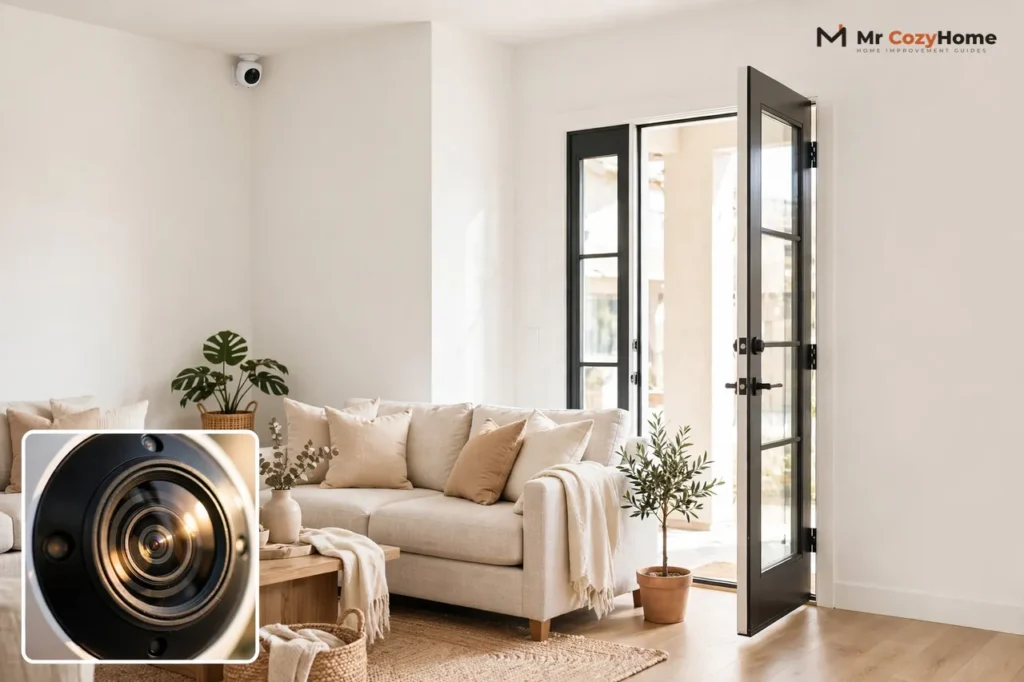
Wireless indoor security cameras let you watch the rooms inside your home from your phone, without running video cables through your walls. They connect to your Wi-Fi, plug into a normal outlet or run on a battery, and send you an alert when they spot movement. Most good models cost $35 to $100, and many work with no monthly fee at all. If you want to check on your kids, your pets, or an empty house while you are away, one small camera in the right spot does the job.
But “wireless” does not mean the same thing on every box. Some cameras still need a power cable. Some stop recording when the Wi-Fi drops. And some keep your clips only if you pay a monthly plan. This guide clears up all of that, so you buy the right camera the first time and place it where it actually helps.
What Is a Wireless Indoor Security Camera?
A wireless indoor security camera is a small camera made for rooms inside your home. It sends video over your Wi-Fi network instead of through a cable, and you watch the live feed in an app on your phone. Most models also record short clips when they detect motion or sound, and they let you talk back through a built-in speaker.
The word “wireless” describes the video connection, not the power. As eufy explains in its own guide, “wireless mainly refers to the connection method rather than completely cable-free operation,” and most indoor models still get power through a USB cable or a mains adapter. Truly battery-powered indoor cameras exist, but they are the exception, not the rule. That matters, because a plug-in camera needs an outlet near the spot you choose, while a battery camera needs charging every few weeks or months.
Indoor cameras differ from outdoor cameras in a few clear ways. They are smaller and lighter, they have no weatherproof housing, and they focus on close-range detail like faces and pets rather than long driveways. They also cost less. If you need to watch a yard or a porch, you need an outdoor model instead.
How Do Wireless Indoor Security Cameras Work?
A wireless indoor camera works in four simple steps. First, the camera connects to your home Wi-Fi network, usually on the 2.4 GHz band, because that band reaches farther through walls than 5 GHz. Second, it watches for motion or sound and starts recording a short clip when something changes. Third, it sends that clip to your phone app, either through the cloud or to local storage like a microSD card. Fourth, you open the app to watch live video, review clips, or speak through the camera.
Your Wi-Fi signal decides how well all of this works. A camera two rooms away from the router, behind thick walls, may drop frames or miss alerts. Before you buy, check the Wi-Fi signal in the spot where the camera will sit. Open your phone there and look at the signal bars, or run a speed test. If the signal is weak, move the router closer, add a Wi-Fi extender, or pick a camera that supports dual-band Wi-Fi so it can use the stronger band.
Most cameras need the internet for remote viewing and alerts. If your internet goes down, many models keep recording to a microSD card and upload the clips later, but some cloud-only models stop saving anything until the connection returns. If your internet is unreliable, choose a camera with local storage so a Wi-Fi outage does not leave you blind.
Where Should You Place an Indoor Camera?
Placement matters more than the camera you buy. A great camera pointed at a blank wall protects nothing, while a basic camera in the right corner sees everything that matters. Start with the spots where someone enters or moves through your home.
Best Spots Inside Your Home
The front entry is the best first spot. Place the camera in a corner of the entryway or living room, about 7 to 8 feet high, angled down toward the door. From there it sees everyone who comes in and catches faces, not just the tops of heads. The main living room comes next, because it connects to most other rooms. A camera on a shelf or mounted high in a corner covers the whole room with one view.
Other useful spots include the hallway that leads to bedrooms, the kitchen if it has a back door, and the room where your pets spend the day. If you work from home, a camera in your office watches your equipment while you are out. One camera per main entry point and one for the main living area covers most homes.
Places You Should Never Put a Camera
Never place a camera in a bathroom, a bedroom where guests sleep, or any spot where someone undresses or expects privacy. The law backs this up: the “reasonable expectation of privacy” test means cameras belong in common areas like living rooms, kitchens, and hallways, not in private spaces. That rule holds even inside your own home. If you rent out a room or host guests on Airbnb, note that Airbnb bans all indoor security cameras in listed properties, even when they are turned off.
Audio adds a second legal layer. Federal wiretapping law and the laws of about a dozen states, including California, Florida, Illinois, and Pennsylvania, require all parties to consent before you record a conversation. In other states, one-party consent applies. If your camera records sound, check your state law and tell guests and household workers that the camera is there. A visible camera and a quick heads-up avoid most problems.
Height, Angle, and Light
Mount the camera high enough that nobody can reach it easily, but low enough to see faces. Seven to eight feet works well in most rooms. Angle it slightly down, and keep it away from windows that face bright sunlight, because backlight turns people into dark silhouettes. If the camera faces a window, close the blinds or move the camera to the opposite wall. Test the view in the app before you fix the mount in place, and walk through the room to check that the motion zone covers the path people actually take.
Plug-In or Battery: Which Power Type Fits Your Home?
Most indoor wireless cameras plug into an outlet. A plug-in camera records around the clock, never needs charging, and costs less than a battery model. Its only limit is the outlet: you need one within reach of the camera’s cable, which is usually 6 to 10 feet long. The Google Nest Cam Indoor (wired, 3rd gen), for example, ships with a 10-foot USB-C cable, so you have real freedom in where you put it.
Battery cameras give you total placement freedom. You can set one on a bookshelf with no outlet nearby, or move it from room to room. The trade-off is charging. SimpliSafe says the battery in its Smart Alarm Wireless Indoor Security Camera lasts up to 3 months on a single charge, depending on placement and usage, and that frequent live viewing drains it faster. Most battery cameras last 2 to 6 months per charge under normal use, and heavy motion or constant live viewing can cut that to a few weeks. If you hate charging things, plug-in wins. If no outlet sits near the spot you need, battery wins.
A simple rule helps you decide. If the camera watches a room all day, every day, plug it in. If you only need it for a few weeks, or you want to move it around, go battery. Renters often prefer battery cameras because they leave no holes and no cords to hide.
What to Look For When You Buy
Camera boxes shout about resolution and features, but only a few specs change your daily experience. Here is what actually matters indoors.
Video Quality and Field of View
For indoor use, 1080p HD is enough to recognize a face across a room. 2K gives you sharper detail and lets you zoom in on a clip without it turning to mush. 4K looks great but uses more Wi-Fi bandwidth and more storage, and it costs more. A wide field of view, around 130 degrees or more, matters more than raw resolution indoors, because it lets one camera cover a whole room. The Nest Cam Indoor (wired, 3rd gen) pairs 2K HDR video with a 152-degree field of view, which is why it covers large rooms so well.
Motion Detection and Smart Alerts
Basic motion detection alerts you whenever anything moves, including curtains and pets. That gets annoying fast. Look for person detection, which only alerts you when the camera sees a person, and motion zones, which let you draw a box around the area you care about, like the front door, and ignore the rest. Pet detection helps if you want to know what the dog is doing without getting an alert every time it walks past.
Two-Way Audio
Two-way audio lets you hear the room and speak through the camera from your phone. It is handy for telling the kids it is time for dinner, calming a barking dog, or warning a stranger that you can see them. Remember the audio laws above: if you record conversations, consent rules apply in your state.
Privacy Features
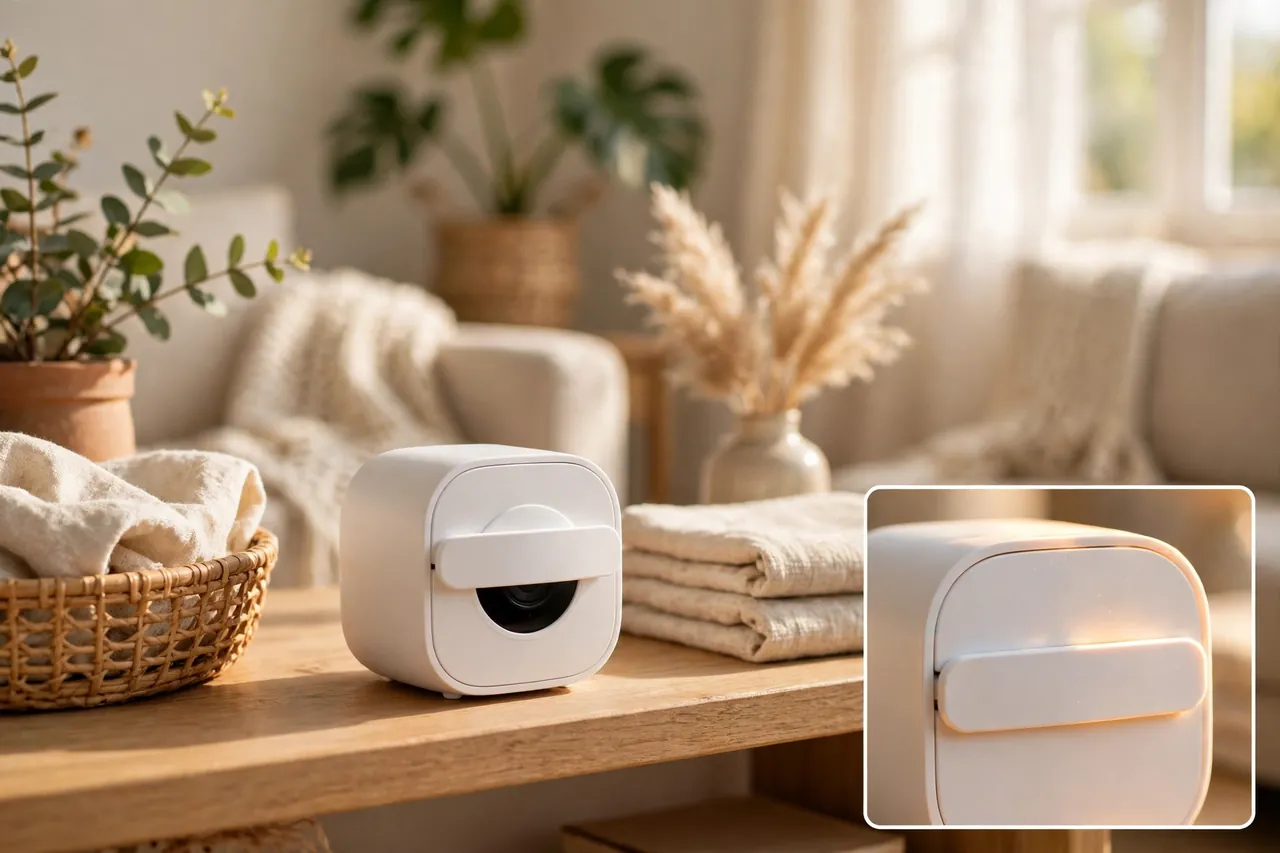
Indoor cameras watch your private life, so privacy features matter. A physical privacy shutter, a slide cover that blocks the lens and turns off the microphone, is the strongest option. The Ring Indoor Cam (2nd Gen) has one built in, and it is the best-designed privacy feature in this price range. Software privacy modes and schedules that turn the camera off when you are home also help. Choose a camera from a brand you trust, use a strong unique password, turn on two-factor authentication, and keep the firmware updated.
Storage and Subscriptions: What You Really Pay
The camera price is only half the cost. The other half is storage, and this is where many buyers get surprised. Without a plan, most cameras still show live video and send motion alerts for free. But saving clips to watch later usually costs money, unless the camera supports local storage.
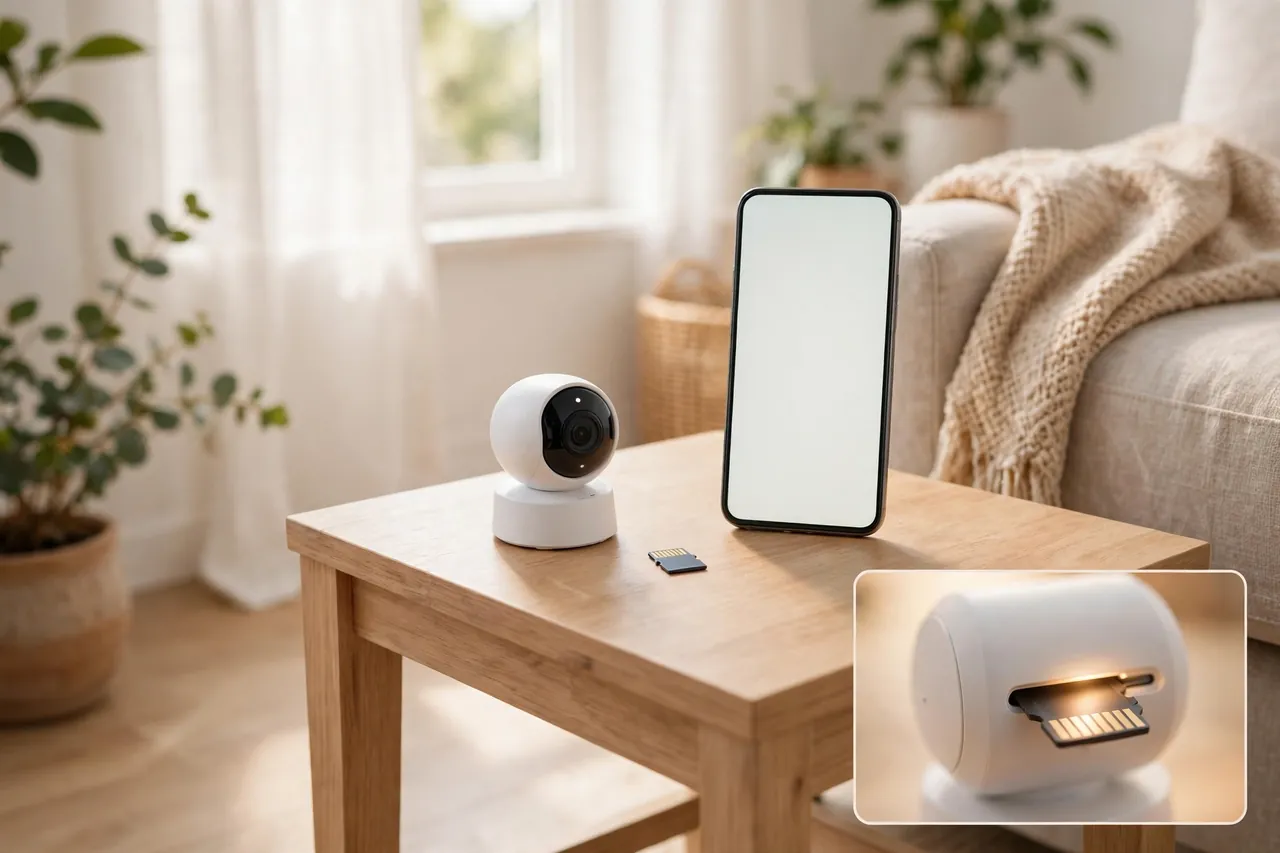
There are three storage options. Cloud storage saves clips on the company’s servers and lets you watch them from anywhere, but it needs a monthly or yearly plan. Local storage saves clips to a microSD card or a home hub with no monthly fee, but you lose the clips if someone steals the camera. Some cameras offer both. If you hate monthly fees, pick a camera with a microSD slot and skip the cloud entirely.
Here is what the main brands charge in the US, checked on November 6, 2026. Ring’s Solo plan costs $4.99 per month or $49.99 per year for one device, with up to 180 days of video history, according to Ring’s own plan comparison. Blink’s Basic plan costs $3.99 per month or $39.99 per year for one device, with up to 60 days of cloud history. Google’s Home Premium Standard plan costs $10 per month and keeps 30 days of event video. These prices change, so check the brand’s plan page before you buy.
Before you pay for any plan, ask yourself what you actually need. If you only want to check the live view and get alerts, the free tier may be enough. If you want to review what happened yesterday, you need either a plan or local storage. For a full guide to cameras that work with no monthly fee at all, see our guide to security cameras without a subscription.
Popular Wireless Indoor Cameras Compared
You do not need to compare twenty cameras. Five well-known models cover almost every home, and their differences come down to price, privacy, and whether they charge a monthly fee. Prices below are list prices in US dollars, checked on November 6, 2026, and they change often, so confirm the current price before you buy.
| Camera | Price | Video | Privacy shutter | Local storage |
|---|---|---|---|---|
| Ring Indoor Cam (2nd Gen) | $59.99 | 1080p | Yes | No |
| Google Nest Cam Indoor (wired, 3rd gen) | $99.99 | 2K HDR | No | No |
| eufy Indoor Cam E30 | $69.99 | 4K | No | Yes, microSD |
| Ring Pan-Tilt Indoor Cam 2K | $69.99 | 2K | Yes | No |
| Blink Mini | $35 | 1080p | No | Yes, with Sync Module 2 |
The Ring Indoor Cam (2nd Gen) is the best pick for most people. At $59.99 it is affordable, it works smoothly with Alexa, and its slide cover blocks the lens and the microphone in one move. Its weakness is storage: Ring saves no video without a plan, so add $4.99 a month if you want clip history.
The Google Nest Cam Indoor (wired, 3rd gen) has the best picture of the group, with 2K HDR video and a 152-degree view, and it fits homes that already use Google Home. At $99.99 it costs more, and its smartest features need the $10-a-month Google Home Premium plan. Buy it for picture quality, not for saving money.
The eufy Indoor Cam E30 is the best pick if you refuse to pay a monthly fee. At $69.99 it records in 4K, pans and tilts to follow movement, and saves clips to a microSD card with no plan at all. It also works with Apple Home at 1080p. If you want whole-room coverage without a subscription, start here. For the pan-and-tilt side of this in more depth, see our guide to the pan-tilt-zoom security camera.
The Ring Pan-Tilt Indoor Cam 2K, at $69.99, adds automatic motion tracking and a built-in privacy shutter to Ring’s indoor line, and it is the better buy if you want one camera to cover a big room. The Blink Mini, at $35, is the cheapest way in, and it pairs with a Sync Module 2 and a USB drive for local storage, but its cloud history still needs the $3.99-a-month Blink Basic plan.
One warning: avoid no-name cameras that cost $15 or less. They often skip security updates, store your video on unknown servers, and stop working when the seller disappears. A camera that watches your home is not the place to save $20.
How to Set Up Your Indoor Camera in 15 Minutes
Setting up an indoor camera is a quick job, and you need no tools beyond your phone. Follow these steps in order.
- Pick your spot first. Choose a corner or shelf 7 to 8 feet high, near an outlet if the camera plugs in, with a clear view of the door or room you want to watch.
- Download the camera’s app and create an account. Use a strong, unique password and turn on two-factor authentication right away.
- Plug in the camera or charge the battery fully before you mount anything. A camera that dies halfway through setup wastes your time.
- Connect the camera to your Wi-Fi. Most apps ask you to scan a QR code on the camera or type the Wi-Fi password. Use the 2.4 GHz band if the app offers a choice, because it reaches farther through walls.
- Hold the camera in the spot and check the live view in the app. Walk through the room and confirm the camera sees faces, not just the ceiling or the floor.
- Set your motion zones and alert settings. Draw a zone around the door or walkway, turn off alerts for areas with pets or curtains, and pick person-only alerts if the camera offers them.
- Mount or place the camera, then test it again. Trigger a motion alert on purpose, speak through the two-way audio, and check that clips save where you expect them to.
- Tell your household about the camera. Show them where it is, when it records, and how to use the privacy shutter or schedule. Honesty now prevents arguments later.
If the camera will not connect, move it closer to the router for setup, then move it to its final spot. If it connects near the router but not in the room, your Wi-Fi signal is too weak there, and you need an extender or a mesh node before the camera will work well.
Wi-Fi Problems and Quick Fixes
Most indoor camera problems are Wi-Fi problems in disguise. The camera itself is fine; the signal is not. Here are the fixes that solve most complaints, cheapest first.
| Problem | Likely cause | Fix to try first |
|---|---|---|
| Camera goes offline at night | Weak signal or router restart | Move the camera closer to the router or add an extender |
| Clips are choppy or freeze | Low bandwidth or crowded band | Switch the camera to the 2.4 GHz band and lower the video quality one step |
| Too many false alerts | Motion zone too wide | Shrink the zone and turn on person-only alerts |
| Camera misses people | Pointed too high or at a window | Lower the angle and keep bright windows out of the frame |
| Battery drains in days | Too much motion or live viewing | Shorten clip length and limit live viewing |
| App cannot find the camera | Phone on 5 GHz, camera on 2.4 GHz | Put your phone on the same 2.4 GHz network during setup |
If none of these fixes work, restart the camera and the router, then update the camera’s firmware in the app. Firmware updates fix bugs and close security holes, so check for them every few months. And if your camera keeps dropping off the network even with a strong signal, try a camera that works without Wi-Fi at all. Our guide to security cameras without Wi-Fi covers local-recording models and hub-based systems that keep working when the network fails.
Do You Need a Camera in Every Room?
No, and buying one for every room wastes money and creates alert fatigue. Most homes need two or three indoor cameras: one at the main entry, one in the main living area, and one more where it matters most to you, such as the room with valuables or the room where the kids play. Bedrooms and bathrooms stay camera-free for privacy, as explained above.
Think about what each camera must do. An entry camera must catch faces and record who comes and goes. A living-room camera must cover a wide area and tell people from pets. A pet camera needs two-way audio and good low-light video. Match the camera to the job, and you will buy fewer cameras and get better results.
If you want a whole-home system with door sensors, alarms, and professional monitoring, a single camera is not enough. Our guide to home security systems with self-monitoring explains how cameras fit into a bigger system. And if you want to record many cameras to one box instead of paying per-camera cloud fees, read our guide to NVR security systems.
Quick Reference: Choose the Right Indoor Camera
Use this short checklist when you shop. If a camera fails any line that matters to you, keep looking.
- Video: 1080p is enough for most rooms; 2K or 4K helps in large rooms or when you zoom into clips.
- Field of view: 130 degrees or wider covers a whole room from one corner.
- Power: plug-in for always-on rooms, battery for spots with no outlet or for renters.
- Storage: microSD or a home hub if you want no monthly fee; cloud if you want clips safe from theft.
- Privacy: a physical shutter or a schedule that turns the camera off when you are home.
- Alerts: person detection and motion zones, so your phone does not buzz all day.
- Wi-Fi: dual-band support helps in crowded homes; 2.4 GHz reaches farther through walls.
- Smart home: Alexa, Google Home, or Apple Home support, so the camera works with the system you already use.
- Price: budget $35 to $100 for the camera, and add the monthly plan cost if the camera needs one to save clips.
Related Guides
If this guide helped you pick an indoor camera, these guides answer the next questions most readers ask. Learn how to skip the monthly fee with a camera that records for free, see which cameras keep working without Wi-Fi, and compare night-vision cameras for dark rooms and hallways. For sound, read our guide to security cameras with audio, and for storing clips in the cloud, see cloud cameras explained. Renters should also check the doorbell camera guide for apartments, and if you want a screen to watch your cameras on, see our guide to a security camera with a monitor.
Frequently Asked Questions
Do wireless indoor security cameras require Wi-Fi to function?
Not exactly. Most wireless indoor security cameras require Wi-Fi for remote viewing, smart notifications, and cloud features. A stable 2.4 GHz or dual-band Wi-Fi connection helps you access live footage through an app. However, many cameras can keep recording locally to a microSD card or a connected hub even when the internet is unavailable.
How do wireless home security cameras get power?
Most wireless home security cameras get power through a USB cable or a mains adapter. Wireless mainly refers to the connection method rather than completely cable-free operation. Battery-powered models exist too, and they usually last 2 to 6 months per charge under normal use, depending on motion activity and settings.
Are wireless indoor security cameras secure from hacking?
Yes, wireless indoor security cameras can be secure when you choose trusted brands and follow good security practices. Look for encrypted connections, strong passwords, two-factor authentication, and regular firmware updates. Cameras from known brands also offer privacy options like local storage and physical shutters for greater control over your recordings.
What features should I consider when choosing a wireless indoor security camera?
Consider video quality, night vision, viewing angle, AI detection, storage options, and app performance when choosing a wireless indoor security camera. Features such as 4K resolution, 360-degree pan and tilt, human and pet recognition, two-way audio, and local storage can create a more convenient and effective home monitoring experience.
How long do battery-powered indoor cameras typically last on a single charge?
Battery life varies a lot by model, battery capacity, and usage. Cameras with high-capacity batteries and efficient power management can last anywhere from a few weeks to several months on standby. Frequent motion detection, live view streaming, and two-way audio use will drain the battery faster, so always check the manufacturer’s specifications.
Do I need a subscription for continuous recording?
Many indoor Wi-Fi security cameras offer basic free storage, but continuous recording or longer video history often requires a subscription plan. Some models include local storage options, such as microSD cards, which eliminate ongoing costs. If you want 24/7 recording with no monthly fee, choose a camera with local storage or a home hub.
A wireless indoor security camera is one of the simplest upgrades you can make to your home. Pick one good camera, put it where people actually enter, set up person-only alerts, and decide on storage before you buy. That is the whole job, and it takes less than an hour. Start with the entryway, test it for a week, and add a second camera only when you know exactly what the first one misses.