Security camera storage is the place your camera saves its video. It can sit on a memory card inside the camera, on a recorder in your home, or on a server in the cloud. Most home setups keep footage for 7 to 30 days before the oldest clips get erased to make room for new ones.
Your choice comes down to three things: how long you want to keep video, how many cameras you run, and whether you would rather pay once or pay every month. This guide puts every option side by side, with real costs, real retention times, and a simple way to pick the setup that fits your home.
What Is Security Camera Storage?
Security camera storage is any place that holds the video your cameras record. Without it, a camera can show you a live view, but it cannot save anything for later. The moment something happens — a package goes missing, a car gets scratched — you need a saved clip to look back on.
Almost every system works the same way once storage fills up. It records in a loop. The camera writes new video over the oldest video, so the footage never stops, but nothing stays forever. The only way to keep a clip for good is to save or export it before the loop erases it.
Storage also decides two things people often forget. First, it decides whether your camera keeps recording when the internet goes down. Local storage usually keeps going. Cloud storage usually stops uploading until the connection comes back. Second, it decides who holds your video — you, on hardware in your home, or a company, on its servers.
The 5 Ways to Store Security Camera Footage
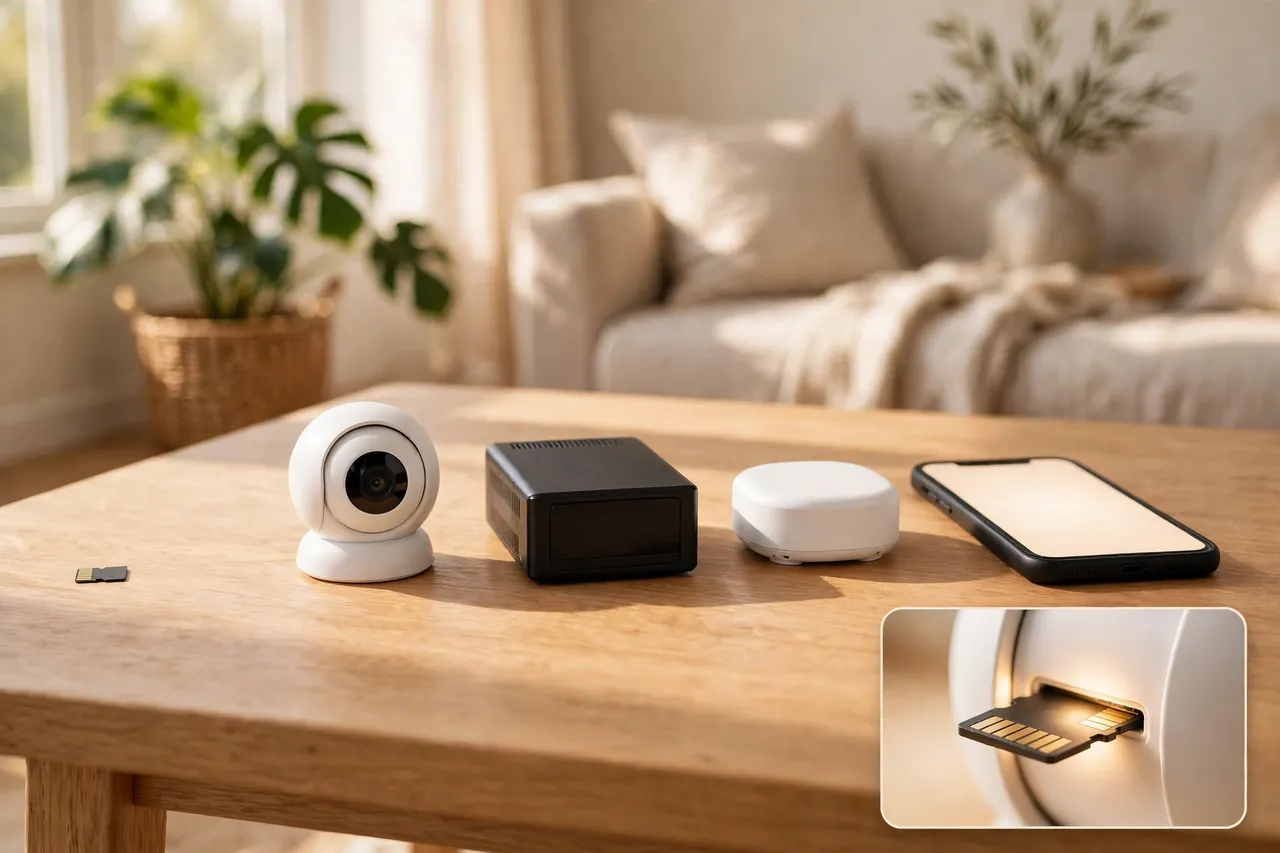
Every home camera system uses one of five storage methods. Some cameras offer only one. Others let you mix two, such as a memory card plus a cloud plan. Here is the full set, from simplest to most powerful.
| Storage method | Best for | Monthly fee | Typical retention |
|---|---|---|---|
| MicroSD card | 1 to 3 cameras | None | Days to a few weeks |
| NVR or DVR hard drive | 4 or more cameras, 24/7 recording | None | Weeks to months |
| Home hub | Several cameras from one brand | Usually none | Weeks to months |
| NAS | Many cameras or mixed brands | None, but camera licenses may apply | Months |
| Cloud storage | Easy remote access and off-site backup | $4 to $20 a month | Set by your plan, often 30 to 180 days |
MicroSD Card Storage
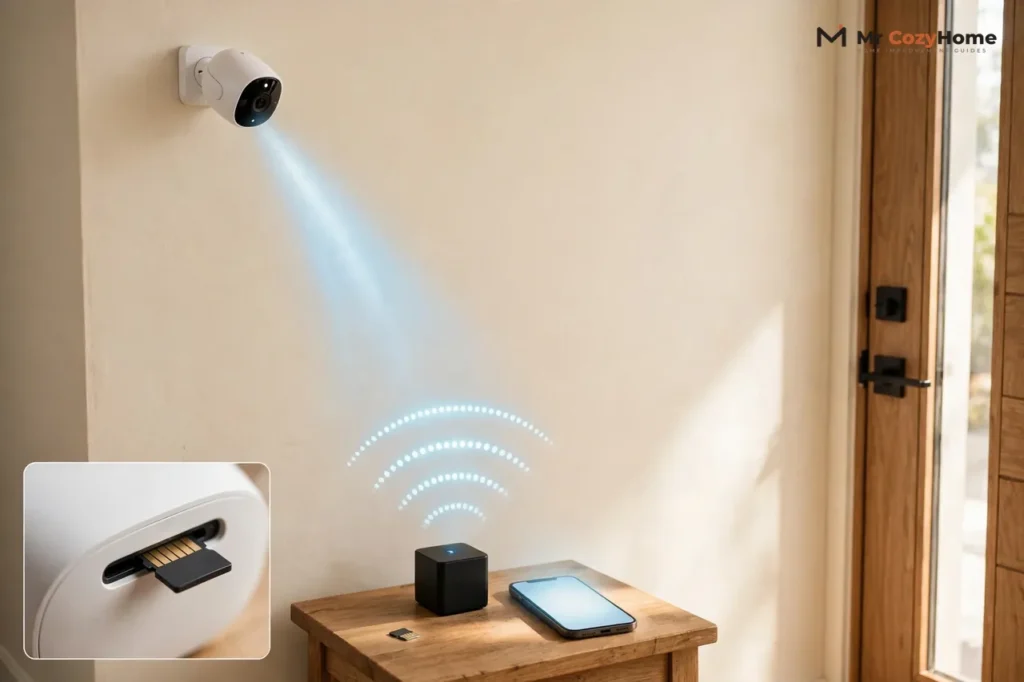
A microSD card slides into a slot inside the camera and records right where the video is captured. It is the simplest option, and it costs nothing month to month. Many cameras that work without a subscription rely on a card like this, so if you want to skip monthly fees, a card is often your first step. Our guide to a security camera without a subscription shows which cameras record locally with no plan at all.
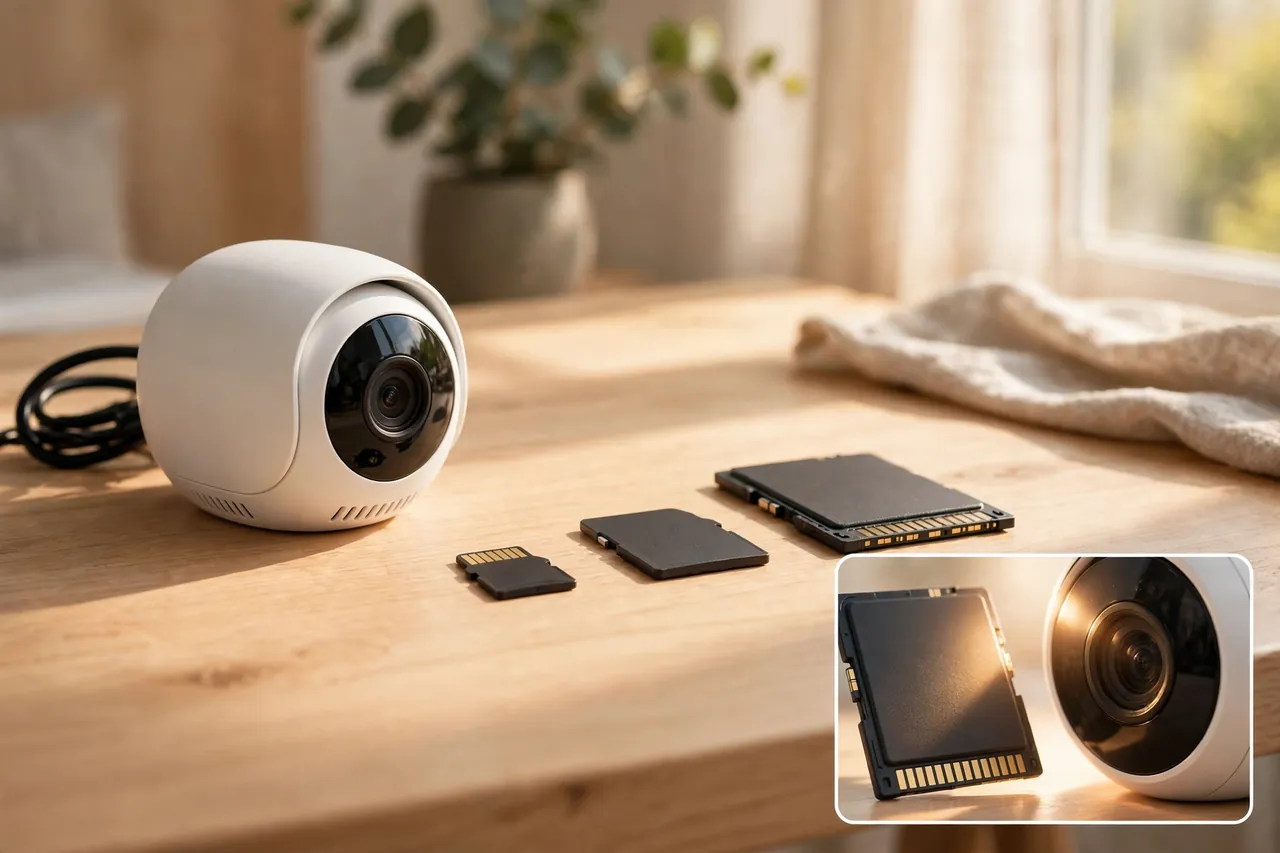
Cards have clear limits. A small card holds only a few days of nonstop video, and the card wears out faster than a hard drive because the camera writes to it all day, every day. Buy a high-endurance card made for constant recording, not a cheap card made for a phone. Endurance-rated cards in 128GB to 256GB sizes run about $20 to $60. Also remember that the card leaves with the camera if someone steals it, so a card alone is a weak backup for anything you cannot afford to lose.
A card works best for one to three cameras, for indoor cameras, and for renters who cannot run cables. Wireless indoor cameras often pair a card slot with a small cloud plan, so you can read our wireless indoor security cameras guide if that is your setup.
NVR and DVR Hard Drives
An NVR (network video recorder) is a small box that collects video from several cameras and saves it on a hard drive you own. A DVR does the same job for older analog cameras. This is the standard choice for a whole-home system with four or more cameras, and for anyone who wants 24/7 recording.
The big win is capacity. A 2TB drive can hold about 12 days of nonstop video from four 4K cameras, according to Reolink’s own NVR recording estimates. Step up to a 4TB drive and you get about 24 days, and a 12TB drive stretches that to about 73 days under the same settings. Switch to motion-only recording and the same drive lasts far longer.
An NVR also keeps recording when your internet drops, because the cameras and the recorder talk over your home network, not the internet. That matters most at the exact moment you need footage. For the full deep dive on recorders, kits, and setup, see our NVR security system guide.
Home Hub Storage
A home hub is a small base station from one camera brand — eufy’s HomeBase is the best-known example. Your cameras send their clips to the hub, which stores them on a built-in drive or a memory card. You get one central place for all your cameras without buying a full NVR.
Hubs suit homes with several cameras from the same brand. They usually charge no monthly fee, and some models let you expand storage up to 16TB. The catch is lock-in: a hub only works with its own brand’s cameras, and if the hub itself fails or gets stolen, you lose the footage from every camera at once.
NAS Storage
A NAS (network attached storage) is a small home server that can act as a recorder when you add surveillance software to it. It is the most flexible option, and the most work to set up. A NAS shines when you mix camera brands, run eight or more cameras, or already own a NAS for backups and media.
Watch the license cost before you buy. Synology’s Surveillance Station, the most popular NAS camera software, includes two free camera licenses with a standard NAS. Every camera after that needs a paid license, which resellers list at about $50 to $65 per camera. QNAP’s QVR Pro includes eight free licenses on most models, which makes it cheaper for bigger systems. A NAS also needs your cameras to speak open protocols such as RTSP or ONVIF, so check the camera’s spec sheet before you buy — many Ring, Nest, and Arlo cameras do not support them.
Cloud Storage
Cloud storage sends your video to the camera company’s servers over the internet. You watch it back from anywhere through the brand’s app, and your footage survives even if someone steals the camera. That off-site safety is the cloud’s real strength.
The price is an ongoing subscription, and the plan sets how long clips stay. Most paid plans keep event clips for 30 to 60 days, and some keep them for 180 days. Free plans, where they exist, usually save only a few hours of clips. Cloud recording also needs a solid upload connection, and it stops uploading during an internet outage. If you want the full picture on cloud-only cameras, read our cloud camera guide.
Local vs Cloud Storage: The Honest Comparison
There is no single winner. Local storage wins on long-term cost and privacy. Cloud storage wins on convenience and off-site safety. The table below lays out the trade-offs plainly so you can judge them against your own home.
| Factor | Local storage | Cloud storage |
|---|---|---|
| Monthly cost | $0 after the hardware | $4 to $20 a month, per plan |
| Records during an internet outage | Yes, if the cameras and recorder have power | No, uploads pause until the connection returns |
| Footage survives a stolen camera | Only if the recorder or hub is hidden elsewhere | Yes, clips already uploaded stay safe |
| Privacy | Video stays in your home | Video sits on company servers |
| Remote viewing | Yes, but setup varies by system | Yes, through the brand’s app |
| Retention limit | Set by drive or card size | Set by your plan, then clips auto-delete |
| Upfront cost | Higher: cards, drives, or a recorder | Low: often just the camera |
Many homes land on a hybrid setup: local storage does the heavy lifting, and a cheap cloud plan backs up the clips that matter most. You get the low running cost of local recording plus the theft protection of the cloud. Cameras that work with no WiFi at all lean the other way — they record fully offline — and our security cameras without WiFi guide covers those.
How Long Do Security Cameras Keep Footage?
Most home cameras keep footage for 7 to 30 days. That is the honest short answer, and eufy’s own guide gives the same range for typical home setups. Business systems often aim for 30 days as a baseline, and some stretch to six months or more. The exact number depends on where the video lives and how the camera records.
| Storage type | Typical retention |
|---|---|
| MicroSD card, motion-only | 2 to 6 weeks |
| MicroSD card, continuous 24/7 | 2 to 7 days |
| Cloud plan, event clips | 7 to 30 days, up to 180 days on top plans |
| NVR with 2TB drive, 4 cameras, continuous | About 10 to 14 days |
| NVR with 4TB drive, 4 cameras, continuous | About 24 days |
| Home hub, motion-only, 1 to 8 cameras | 30 to 180 days |
These figures come from Reolink’s retention guide, which bases them on its own NVR and card tests. Your numbers will shift with resolution, frame rate, and how busy the scene is. A camera pointed at a quiet hallway keeps video far longer than one pointed at a busy street, because still scenes compress much smaller than moving ones.
Remember the loop rule: no system keeps footage forever unless you step in. When storage fills, the oldest video goes first. If a clip matters — a break-in, a crash, a dispute — export it to your computer or an external drive the same day. Once the loop overwrites it, it is gone.
How Much Storage Does a Security Camera Use?
Storage use comes down to one simple rule: the amount of video your camera writes each second, measured against the space you have. Four things set that rate — resolution, frame rate, compression, and whether the camera records all day or only on motion.
Resolution is the biggest lever. A 4K camera captures about four times the pixels of a 1080p camera, and its files run about four times as large at the same settings. Frame rate matters too: 30 frames per second uses roughly 50% more storage than 20 frames per second. And compression is free space — H.265 cuts file sizes by about half compared with older H.264 at the same picture quality, which roughly doubles how long your storage lasts.
The table below uses Reolink’s published card figures for one camera recording nonstop in H.264. Use it as a planning guide, then check your own camera’s bitrate setting, because that setting is what truly decides the math.
| Resolution | Data per day, continuous | What a 128GB card holds |
|---|---|---|
| 1080p | About 22GB | About 6 days |
| 2K (1440p) | About 33GB | About 4 days |
| 4K | About 88GB | About 1.5 days |
Motion-only recording changes everything. A camera that records only when something moves can use 60% to 90% less storage than one that records around the clock. That is why a 128GB card that lasts a day and a half on 4K continuous recording can hold weeks of motion clips instead.
Night vision adds a wrinkle worth knowing. Night footage is grainier and noisier than daytime video, and noisy video compresses poorly, so a camera that records all night uses more space than you might expect. If night coverage matters to you, our night vision security cameras guide explains what to look for — and remember to budget storage for those night hours.
To size any system yourself, use this formula from Reolink’s guide: storage in GB equals bitrate in Kbps times 86,400 times the number of cameras times the number of days, divided by 8,000,000. As a worked example, four cameras at 4K and 4,096 Kbps for 14 days need about 2,477GB — so you would buy a 3TB drive, not a 2TB one. Always round up and leave a little headroom.
What Do Cloud Storage Plans Cost?
Cloud plans look cheap at first glance, but the monthly fee is forever, so the honest way to judge one is the yearly total. The table below shows the main US plans, with prices checked on November 7, 2026 against the providers’ own plan pages as reported in October 2026 roundups. Prices change often, so confirm the current price on the provider’s site before you subscribe.
| Brand and plan | Monthly price | Video history |
|---|---|---|
| Ring Solo (1 device) | $4.99 | Up to 180 days |
| Ring Multi (all devices, one home) | $9.99 | Up to 180 days |
| Ring Pro (all devices + monitoring) | $19.99 | Up to 180 days |
| Google Home Premium Standard | $10 | 30 days of events, all cameras |
| Google Home Premium Advanced | $20 | 60 days of events + 10 days of 24/7 video |
| Arlo Secure Plus (1 camera) | $9.99 | 60 days |
| Arlo Secure Plus (unlimited cameras) | $19.99 | 60 days |
| Blink Basic (1 device) | $3.99 | 60 days |
| Blink Plus (all devices) | $10 | 60 days |
| Wyze Cam Plus (1 camera) | $2.99 ($29.99 a year) | 14 days |
| Wyze Cam Unlimited (all cameras) | $9.99 ($99.99 a year) | 14 days |
Two details in that table deserve a closer look. First, Ring gives the longest history for the money — 180 days on every plan — while Google and Arlo top out at 60 days of events. Second, the “all cameras” plans are the ones that make sense once you own three or more cameras, because per-camera plans multiply fast. Three cameras on Ring Solo would cost about $180 a year, while Ring Multi covers all of them for about $120 a year.
Run the five-year math before you commit. A $10-a-month plan costs $600 over five years, and a $20-a-month plan costs $1,200 — on top of the cameras you already bought. A local setup that costs $260 to $460 once can look expensive on day one and cheap by year two. Also note that Ring renamed its plans in January 2026: older articles still call them Protect Basic, Plus, and Pro, but the current names are Solo, Multi, and Pro.
One more thing to check before you pay: some brands keep useful features behind the plan. Person detection, package alerts, and smart notifications often need a subscription even when the camera itself records locally. Read the plan page for your exact camera model, not just the brand.

What Does Local Storage Cost?
Local storage flips the cloud model around. You pay once for hardware and then nothing, month after month. The upfront bill is bigger, but it stops growing.
- MicroSD card: about $20 to $60 for a 128GB to 256GB high-endurance card. Budget one card per camera, and expect to replace a card every couple of years under heavy use.
- NVR kit: a four-camera PoE NVR kit with a 4TB drive typically runs $260 to $460 as a one-time purchase. That covers the recorder, the drive, and the cameras in the box.
- Extra hard drive: a surveillance-rated drive costs more than a desktop drive, but it is built for writing video all day. Doubling your drive size roughly doubles your retention.
- NAS: the NAS box itself plus drives, and camera licenses where they apply — about $50 to $65 per extra camera on Synology after the two free licenses.
- Home hub: usually bundled with a camera kit, or bought once on its own. No monthly fee on most models.
Compare that with the cloud over five years and the picture gets clear. Four cameras on a $10-a-month all-cameras plan cost $600 in five years. The same four cameras on a $260 to $460 NVR kit cost that much once, and nothing after. The cloud still wins for a single camera, where a $4-a-month plan costs about $240 over five years and a full recorder would be overkill.
How to Choose Storage for Your Home
Start with how many cameras you have, because camera count picks the storage almost by itself. Then check your internet, your budget, and how much you care about keeping footage out of a company’s servers.
| Your household | Best storage pick |
|---|---|
| Renter, 1 to 2 cameras | MicroSD card, or a cheap cloud plan if you want off-site backup |
| Homeowner, 1 to 3 cameras | MicroSD cards plus a home hub, or one all-cameras cloud plan |
| Homeowner, 4 to 8 cameras | PoE NVR with a 2TB to 4TB drive |
| 8+ cameras or mixed brands | NAS with surveillance software |
| Privacy-first household | Local only: cards, NVR, or NAS — no cloud plan |
| Frequent traveler | Hybrid: local recording plus a cloud plan for off-site backup |
A few practical checks before you buy anything. First, check your upload speed: cloud cameras need a steady upload, and 24/7 cloud recording needs a lot of it. Second, check whether your camera even offers local storage — Ring cameras do not record to a card at all, and some Nest models have no local option. Third, think about where the recorder sits: a visible NVR next to the TV is easy for a burglar to grab, so tuck it in a closet or a locked cabinet.
Pan-tilt-zoom cameras deserve a special note here. A PTZ camera follows movement, so it records more motion events than a fixed camera pointed at the same yard — and more motion means more storage. If you run one, plan for the extra space, and read our pan-tilt-zoom security camera guide to see how these cameras work before you size their storage.
How to Make Your Footage Last Longer
You do not always need a bigger drive. A few setting changes can double or triple how long your footage survives, and they cost nothing.
- Switch to motion recording. Record only when something moves. This one change stretches a 128GB card from about 3 days to several weeks, according to Reolink’s guide.
- Turn on H.265 compression. If your camera and recorder support it, H.265 cuts file sizes by about half with no visible loss in quality.
- Use smart detection and zones. Person and vehicle detection, plus motion zones that ignore the sidewalk and the street, stop the camera from saving hundreds of useless clips of passing cars and swaying trees.
- Lower resolution where detail does not matter. Keep 4K on the front door and the driveway, where faces and plates count. Run 1080p on the backyard and side gate, where you only need to know someone was there.
- Drop the frame rate a little. Going from 30 frames per second to 20 saves about a third of your storage, and the video still looks smooth.
- Export what matters. Save important clips to a computer or external drive right away. Your rolling storage is a buffer, not an archive.
Mistakes to Avoid With Camera Storage
Most storage headaches come from small choices made on setup day. Dodge these five and your system will treat you well.
- Buying the wrong card. A standard microSD card wears out fast under nonstop writing. Always buy a high-endurance card rated for cameras and dashcams.
- Running 4K on every camera. Four 4K streams fill a 2TB drive in about 10 to 14 days. Use 4K where it earns its keep and 2K or 1080p everywhere else.
- Assuming the cloud saves everything. Most cloud plans save motion events only. If you need a full 24/7 timeline in the cloud, check that your plan actually offers it — many do not.
- Forgetting the loop. Footage you never export disappears on its own. Set a habit: check clips weekly and save anything important the same day.
- Putting the recorder in plain sight. A thief who takes the NVR takes all your footage. Hide it, and let a cloud backup cover the rest.
A Quick Note on Privacy
Your cameras may capture more than your own property — a neighbor’s yard, a sidewalk, or a shared hallway. Rules about recording other people vary by state and by country, and audio recording has stricter rules than video in many places. Point cameras at your own doors and yard where you can, tell people in your home that cameras record, and check your local rules if a camera sees a public or shared space.
Related Guides
What Is a Cloud Camera? How Cloud Recording, Plans, and Privacy Really Work · Security Camera With Monitor: The Complete Guide to Monitor-Included Systems · NVR Security System: What It Is, How It Works, and How to Choose One for Your Home
- Cloud cameras — how they work, what they cost, and when they are worth it
- NVR security systems — recorders, cameras, and setup
- Security cameras without a subscription — no monthly fee, full protection
- Security cameras without WiFi — how they work and what to buy
- Security cameras with a monitor — how to watch your cameras on a screen
- Wireless indoor security cameras — the beginner’s guide
- Night vision security cameras — see clearly after dark
- Pan-tilt-zoom security cameras — coverage that moves with the action
Frequently Asked Questions
Do security cameras keep footage forever?
No, security cameras do not keep footage forever. Most systems run on a loop, so once storage fills up, the oldest files get overwritten by new ones. How long footage lasts depends on your storage size, your camera settings, and your plan. Save any clip you want to keep to another device before the loop erases it.
How often is security camera footage deleted?
Footage is usually deleted automatically when storage fills up or when it reaches your system’s retention limit. For many home setups, that is anywhere from a few days to a few months. The system simply overwrites the oldest files with new recordings. You can stretch that window by lowering resolution, switching to motion recording, or adding more storage.
Can camera footage be recovered?
Sometimes, deleted footage can be recovered if the storage has not been overwritten yet. This works best with hard drives and NVRs, where recovery tools may restore data. Once the same space has been reused for new video, recovery becomes very difficult or impossible. Export and back up important clips right away, before they are lost.
Can overwritten footage be recovered?
Usually, overwritten security camera footage cannot be fully recovered, because the original video data has been replaced by newer recordings. Once an NVR, DVR, microSD card, or other storage device writes new data over the same space, recovery becomes much harder and may be impossible. Stop recording to the device if you hope to recover anything.
Do home security cameras delete footage?
Yes, home security cameras can delete footage based on your settings and storage. Most modern systems use loop recording, which means that when storage is full, the system automatically deletes the oldest footage to make room for new recordings. Cloud plans work the same way: clips auto-delete once they pass the plan’s history limit, such as 30, 60, or 180 days.
The Bottom Line
Security camera storage is a simple trade: local storage costs you once and keeps your video at home, while cloud storage costs you every month and keeps a copy somewhere safe. Most homes do best with local recording for the everyday footage and a small cloud plan — or just regular exports — for the clips that truly matter.
Pick your retention goal first, then count your cameras, then choose the storage that fits. A 128GB card covers a camera or two, an NVR covers a whole house, and a hybrid setup covers you when things go wrong. Set it up once, check that the loop works, and save the clips that count before they are gone.