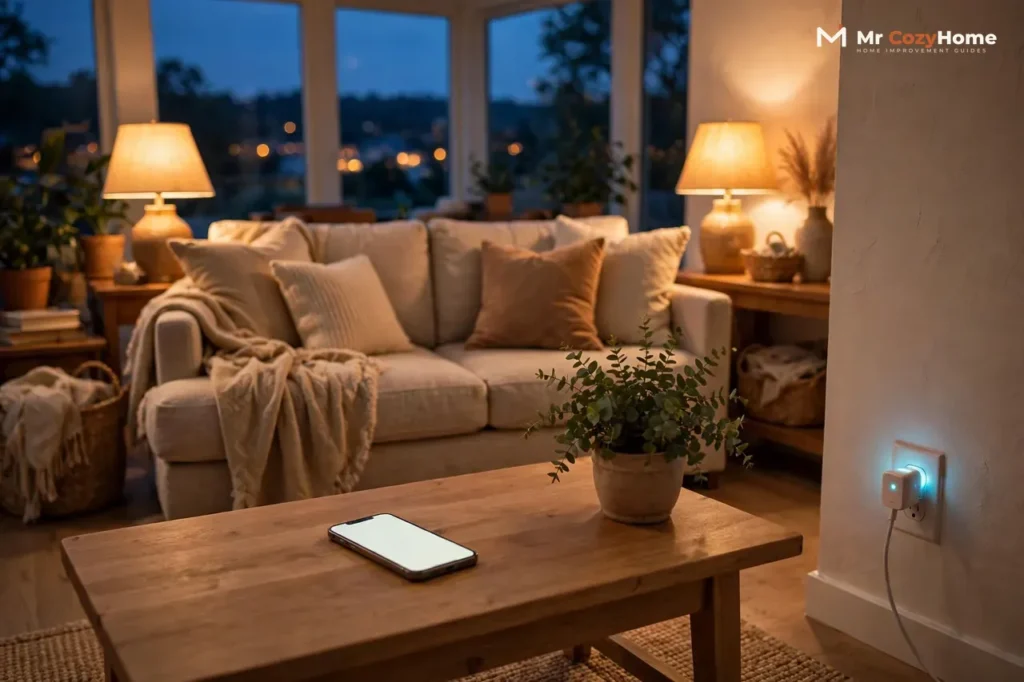
A wifi plug is a small adapter that sits between a wall outlet and an ordinary device, and it lets you turn that device on or off from your phone, with your voice, or on a schedule. The device itself does not need to be smart. A plain lamp, a fan, or a coffee maker becomes controllable the moment you plug it into a wifi plug, because the plug does all the smart work.
That is the whole idea, and it is why smart wifi plugs are one of the easiest first steps into a smart home. There is no rewiring, no new wall outlet, and no electrician. You plug it in, connect it to your home Wi-Fi, and control it from an app. The rest of this guide explains how it works, what you can do with it, how to pick the right one, and how to set it up safely.
What Is a WiFi Plug?
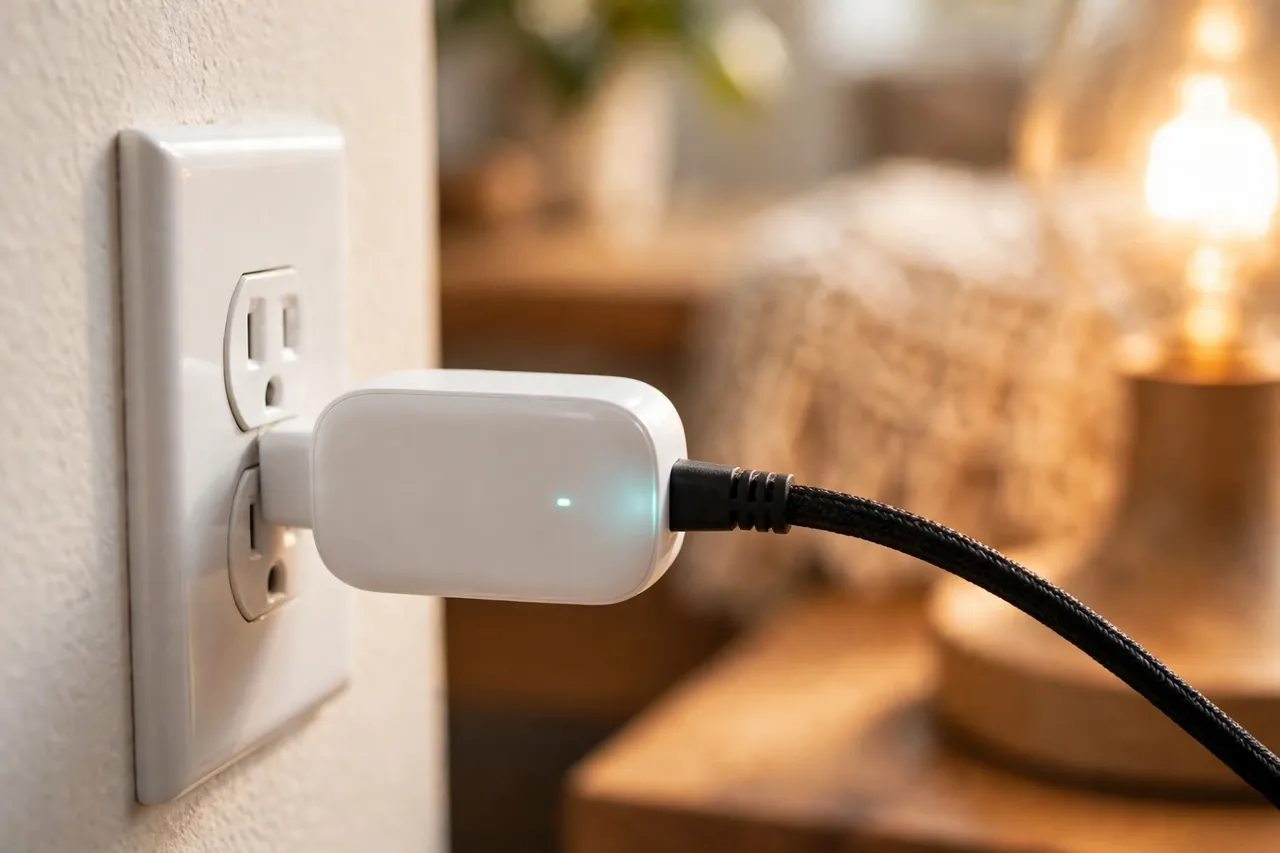
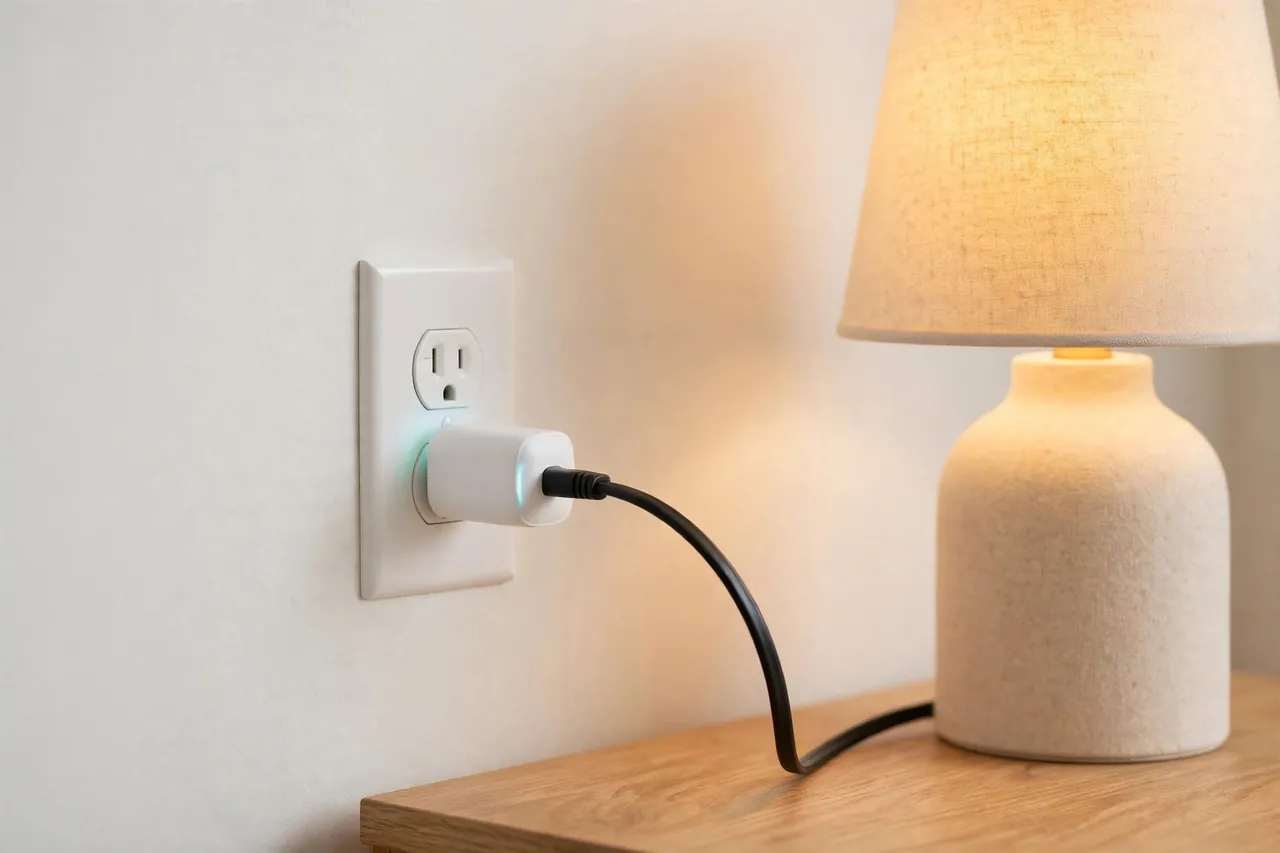
A wifi plug, often called a smart wifi plug or simply a smart plug, is an adapter with a plug on one side and an outlet on the other. You push it into a standard wall outlet, then plug your lamp or appliance into it. From the outside, it looks like a slightly bulky plug. Inside, it has a Wi-Fi radio and a small switch called a relay that opens or closes the power to whatever is plugged in.
When you tap “on” in the app, the plug closes the relay and power flows to your device. When you tap “off,” the relay opens and power stops, just as if you had pulled the plug out of the wall. Your lamp does not learn anything new. The plug controls the power, and that is enough to make an ordinary device behave like a smart one.
Most wifi plugs also have a small button on the side. That button matters more than people expect. If your phone is in another room, or your Wi-Fi is down, you can still walk over and press the button to turn the device on or off by hand. A smart plug should never leave you stuck with no way to control the device at all.
How Does a WiFi Plug Work?
A wifi plug works in four short steps. First, you send a command, usually by tapping a button in the plug maker’s app or by speaking to a voice assistant. Second, that command travels over the internet to the maker’s cloud server. Third, the server sends the command back to the plug over your home Wi-Fi. Fourth, the plug’s relay opens or closes, and your device turns on or off. The app then shows the new status, so you can see that it worked.
Most wifi plugs connect to your home network on the 2.4 GHz Wi-Fi band, not the faster 5 GHz band. This is normal, and it is a deliberate choice by makers: the 2.4 GHz band reaches farther through walls and floors than 5 GHz does. It is also the most common reason a setup fails. If your router gives both bands the same network name, your phone may sit on 5 GHz while the plug looks for 2.4 GHz, and the two never meet. Splitting the bands into separate names during setup, or moving your phone to the 2.4 GHz network, usually fixes it.
Newer plugs that support Matter, the shared smart home standard, can sometimes work locally without going through the cloud at all, so they respond faster and keep working during an internet outage as long as your home network itself is still running. Not every wifi plug supports Matter, so check the box if local control matters to you.
Your plug also stays powered all the time, even when the device plugged into it is off. It needs a tiny amount of electricity to keep its Wi-Fi radio listening for your next command. Guides that measure this put a typical wifi plug’s standby draw at about 1 to 2 watts, which works out to roughly a few dollars a year on a normal US electricity bill, as explained in this guide to how smart plugs work. That small cost is usually far less than the energy saved when the plug switches off devices that would otherwise sit on all night.
App Control, Voice Control, and Schedules
The app is the heart of a wifi plug. From it, you can turn the plug on or off from anywhere, see whether it is currently on, and set schedules. A schedule is simply a rule you write once, such as “turn the lamp on at sunset and off at 11 p.m.” After that, the plug follows the rule on its own. Many plugs store schedules on the device itself, so a daily schedule often keeps running even if your internet goes down for a while.
Voice control works through a voice assistant such as Amazon Alexa, Google Assistant, or Apple Home. Link the plug maker’s app to your assistant once, give the plug a clear name such as “bedroom lamp,” and then say the command. A plug called “plug 1” is hard to control by voice, while “living room lamp” is natural.
Some wifi plugs also track energy use, showing how much electricity the connected device draws, in watts right now and total use over days or weeks. That helps you find devices that quietly draw power all day. If you only want on, off, and schedules, you do not need energy monitoring. If you want to find wasted electricity, it is the feature to look for.
App control extends beyond plugs. Our guide to how smart lock apps work shows the same idea on a different device, so you can judge app quality before buying more smart gear.
What Can You Do With a WiFi Plug?
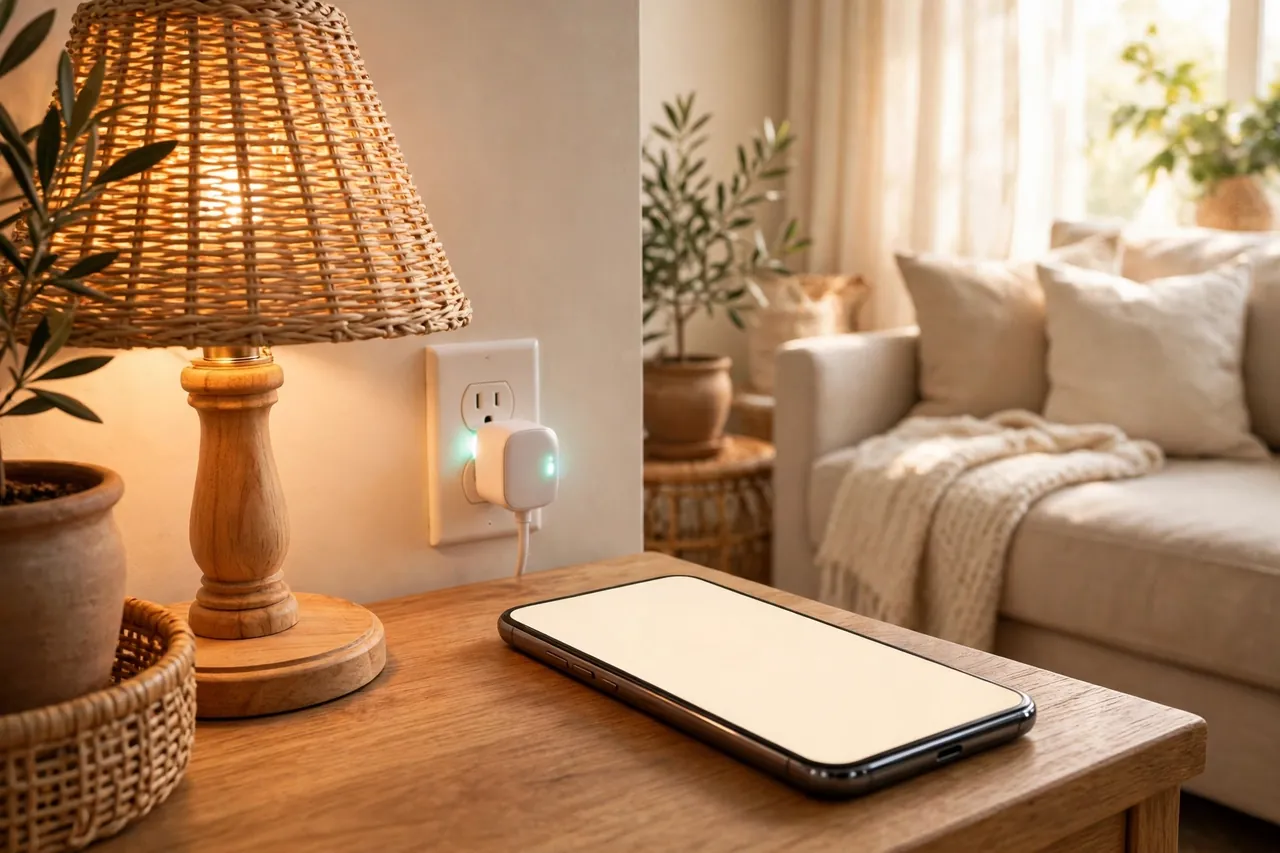
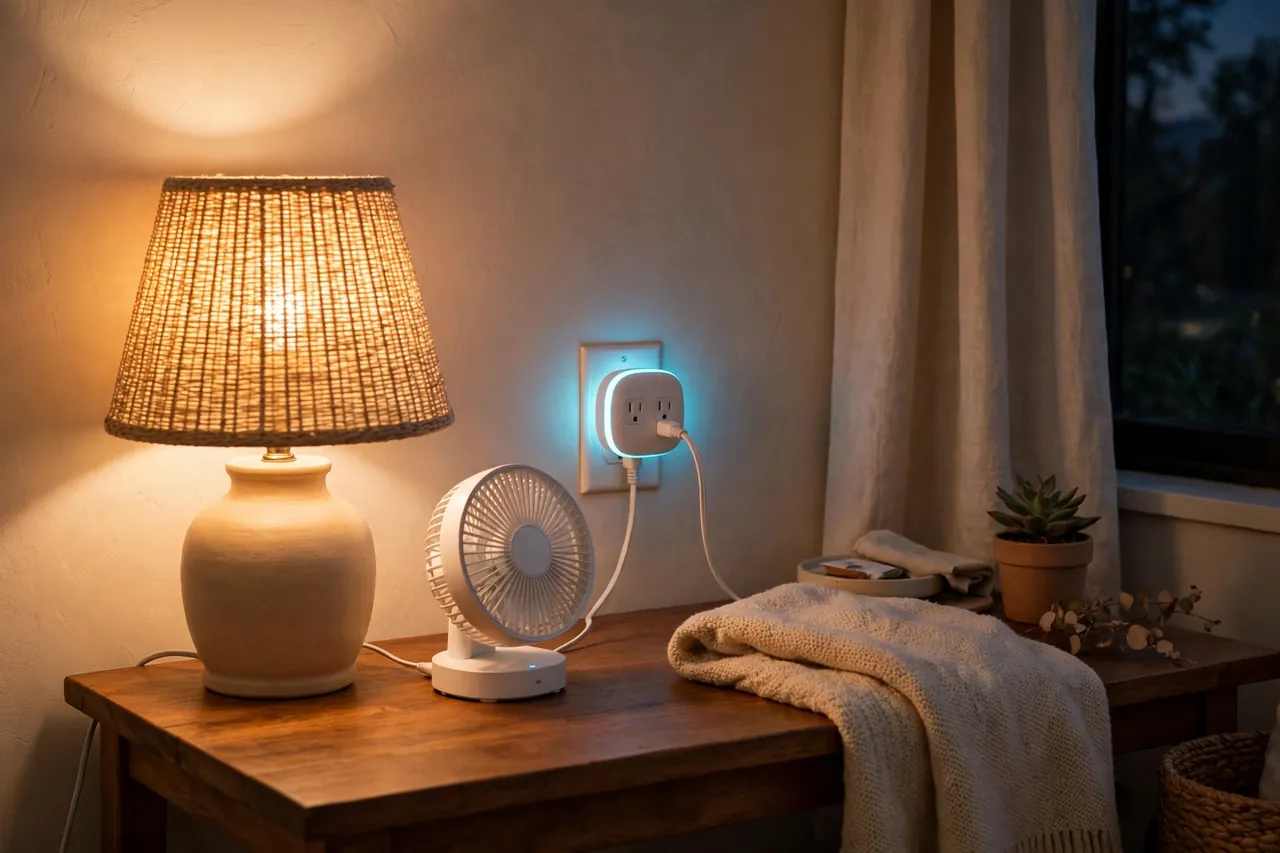
The best uses for a wifi plug are the small daily jobs you repeat without thinking. A lamp that turns itself on at sunset means you never come home to a dark house. A coffee maker that starts before your alarm means breakfast is ready when you walk into the kitchen. A fan that switches off an hour after bedtime means you do not sleep with it running all night.
Here are the uses most homeowners start with:
- Lamps: Set a sunset-to-bedtime schedule, or switch a lamp on from the car so the house looks lived in when you arrive.
- Holiday and string lights: Put plug-in lights on a schedule instead of crawling behind the tree or the sofa every night.
- Fans and heaters: Run a fan for a set time, or warm a room before you get home. Check the wattage rating first, as explained in the safety section below.
- Coffee makers and kettles: Start the morning routine on a schedule. This works only with devices that start by themselves when power returns, as explained below.
- Chargers and entertainment gear: Cut power to a TV, game console, or charger bank overnight so they stop drawing standby power.
- A lived-in look while you travel: Stagger two or three lamps on different schedules so the house does not sit dark or lit at exactly the same times every night.
One limit catches many first-time buyers. A wifi plug controls power, not the device’s own buttons. If your coffee maker needs you to press “brew” after it gets power, the plug alone will not start it. Before you buy a plug for one device, unplug that device and plug it back in: if it starts on its own, a wifi plug will control it. If it waits for a button press, a plug will only cut its power.
One note on schedules, because they save the most effort: on a wifi plug, a schedule is simply one of the plug’s own features, a repeating on and off rule you set in the app. Deep timer programming, such as a dial-based plug-in timer or a wall-switch timer, is a different device with its own guide.
WiFi Plugs vs Other Smart Controls
A wifi plug is not the only way to control a device, and the differences matter when you shop. The table below compares the three options a beginner usually meets first. It is built from the facts in this guide: how each option connects, what happens when the internet drops, and what each one controls.
Quick comparison: wifi plug, hub-based plug, and smart power strip
| Feature | WiFi plug | Hub-based plug (Zigbee or Z-Wave) | Smart power strip |
|---|---|---|---|
| How it connects | Directly to home Wi-Fi, usually 2.4 GHz | Through a hub that connects to your router | Wi-Fi, like a wifi plug |
| Needs a hub? | No | Yes, one hub for many devices | No |
| Remote control without internet | No, except a stored schedule or the manual button | Local control through the hub often keeps working | No, except a stored schedule or the manual button |
| Devices controlled | One device per plug | One device per plug | Several devices, each outlet separately |
| Energy monitoring | On some models | On some models | Often per outlet on better models |
| Best for | A first smart device, one lamp or appliance | A growing smart home with many devices | A desk or TV stand with several devices |
The simple rule: no hub and one device to control means a wifi plug is easiest. If you already own a hub, or plan many smart devices, a hub-based plug is more reliable for local control. For a whole TV stand or desk at once, a smart power strip replaces several plugs, but every device on it shares one wattage limit.
How to Choose a WiFi Plug
Choosing a wifi plug is mostly a matching exercise: match the plug to your home, your voice assistant, and the device you want to control. Work through this checklist before you buy, and you will avoid the most common regrets.
- Voice assistant match: Check the box for Amazon Alexa, Google Assistant, or Apple Home, whichever you already use. A plug that does not list your assistant will still work from its own app, but not from your voice.
- 2.4 GHz Wi-Fi: Confirm your router has a 2.4 GHz network. Almost all home routers do, even if both bands share one name. If setup fails, split the bands temporarily, as described above.
- Wattage rating: Most US wifi plugs are rated for 15 amps, which is 1,800 watts. Read the rating on the plug and compare it with the device’s wattage label. Never exceed it.
- Energy monitoring: Choose it if you want to find wasted electricity. Skip it if you only need on, off, and schedules.
- Size and shape: A slim plug leaves the second outlet free. A wide plug may block it, which matters on a double outlet behind furniture.
- Matter support: Worth having if you want local control and the freedom to switch between smart home systems later.
- Safety certification: Look for a UL or ETL mark on the plug and the box. These marks mean an independent lab tested the product for electrical safety.
- No hub needed: Most wifi plugs need no hub and no subscription. If a listing asks for a hub or a monthly fee, make sure you know what it buys you before you pay.
Brand matters less than these checks, but a known maker is still wiser: its app stays updated, its support answers, and its safety certification is more likely to be real. Very cheap no-name plugs are where most safety problems turn up, because some skip proper testing or overstate their wattage rating.
How to Set Up a WiFi Plug
Setup takes about five to ten minutes, and the steps are nearly the same for every brand. Follow your plug maker’s app if it differs in any detail, because the app is written for that exact model. The general path is:
- Plug the wifi plug into a wall outlet near your router for the first setup, then move it later if you need to. Wait for its light to blink, which means it is ready to pair.
- Download the plug maker’s app on your phone and create an account if the app asks for one.
- In the app, add a new device and pick your plug model. The app will usually ask you to connect your phone to the plug’s own temporary Wi-Fi signal first. This is normal: the plug broadcasts its own signal just long enough for you to hand it your home Wi-Fi name and password.
- Type in your home Wi-Fi name and password, and make sure you pick the 2.4 GHz network if your router shows both bands separately.
- Wait for the app to confirm the plug is connected, then give the plug a clear name, such as “living room lamp” or “bedroom fan.”
- Test it: turn the plug on and off from the app, then test the voice command if you linked a voice assistant.
- Set one schedule, such as switching a lamp off at bedtime, and check the next day that it ran. One working schedule teaches you the whole system.
If setup fails, the cause is almost always the Wi-Fi band. Move your phone to the 2.4 GHz network, restart the plug by unplugging it for ten seconds, and try again. If the plug sits far from your router, set it up in a nearer outlet first, then move it and check that it still responds. No app setting fixes a weak signal.
WiFi Plug Safety: What to Watch
Wifi plugs are safe when they are used within their limits, and most problems come from ignoring those limits. The rules below are short, and following them covers nearly every risk.
First, respect the wattage rating. A standard US wifi plug rated at 15 amps handles up to 1,800 watts. A lamp, a fan, or a phone charger is far below that. A space heater, a large air conditioner, or a hair dryer can reach or pass it. If a device’s label shows more watts than the plug allows, do not use that plug for that device. Heaters deserve special care: some makers and heater brands warn against running a heater through a smart plug at all, because a heater left on by accident, or switched on while nobody is home, is a fire risk. If you do use a plug with a heater, make sure the plug is rated for it, never leave it running unattended, and never use it to switch a heater on from outside the house.
Second, buy certified plugs from known makers. A UL or ETL mark means the plug passed independent safety testing. Uncertified plugs are the ones most often linked to overheating, because they may lack proper overload protection or use materials that do not resist heat well. Good plugs include overload protection that cuts power if the load becomes unsafe, a safety feature manufacturers such as TP-Link describe in their smart plug safety guidance.
Third, do not chain loads through one plug. A power strip on a smart plug is fine only if the total draw of everything on the strip stays below the plug’s rating. A strip with a lamp, a charger, and a small speaker is fine; a strip with a heater and a vacuum cleaner is not. When the plug switches off, everything on that strip loses power at once.
Fourth, keep some devices off smart plugs entirely. Never connect medical or life-safety equipment, such as a breathing machine or a home alarm panel, to a wifi plug. A software glitch, a wrong tap in the app, or an internet outage could cut power to equipment that must never lose it. Those devices belong on a direct outlet, or on a proper backup power supply.
Finally, keep the plug’s firmware updated and use a strong, unique password for the plug maker’s app account. Updates fix bugs and close security gaps, and an out-of-date plug is an easier target on a home network.
Troubleshooting: When Your WiFi Plug Won’t Cooperate
Most wifi plug problems have a short list of causes. Work through these cheapest, safest checks first, before you return a plug or call for help.
- The plug will not connect during setup. Check that your phone is on the 2.4 GHz network, not 5 GHz. Split the router bands into separate names if you need to, restart the plug by unplugging it for ten seconds, and try again.
- The plug shows offline in the app. Check whether your Wi-Fi is up and whether other devices are online. Move the plug nearer the router to test the signal. If it works near the router but not in its final spot, the signal there is too weak.
- Voice commands stop working. Open the plug maker’s app first: if the plug responds there, the link to your voice assistant needs refreshing. Ask your assistant to discover or sync devices again.
- The device does not turn on when the plug turns on. The device probably needs its own button pressed after power returns. This is a device limit, not a plug fault. Use the plug only to cut power, or pick a device with a mechanical switch.
- A schedule did not run. Check the schedule in the app for the right days and time zone, and confirm the plug was online at the scheduled time. Schedules stored on the plug usually run without internet, but a plug that was offline or unplugged cannot run anything.
- The plug is warm to the touch. A slightly warm plug under load is normal, but a hot plug, a smell of burning, or discoloration is not. Switch it off, unplug it, and stop using it. If the connected device draws near the plug’s rating, move that device to a direct outlet.
If none of these checks fix the problem, check the maker’s support pages for your exact model before replacing the plug. A model-specific reset or firmware update often solves what general steps cannot.
Related Guides
If app control is what drew you to a wifi plug, our guide to how smart lock apps work explains the same idea on another device, so you can judge app quality before buying more smart gear. And if you are building out a smart home one device at a time, our smart key lock guide covers the next device many homeowners add after plugs and lights.
For timers without an app, see our automatic light switch timer guide and our guide to how to use a timer plug.
Frequently Asked Questions
Do smart plugs use a lot of electricity?
No. A wifi plug draws only about 1 to 2 watts of standby power to keep its Wi-Fi radio listening, roughly a few dollars a year on a normal US bill. Used to switch off devices that would otherwise stay on all night, it usually saves more electricity than it uses.
Do smart plugs work without Wi-Fi?
For remote control, no. A wifi plug needs active Wi-Fi for app and voice commands. Without it, you lose remote and voice control, but the manual button on the plug still works, and schedules stored on the plug often keep running. Hub-based plugs differ: they can keep working locally through their hub during an outage.
Are smart plugs safe?
Yes, when certified and used within their rating. Choose a plug with a UL or ETL mark from a known maker, never exceed its wattage rating, and never use it with medical or life-safety equipment. The main risks are overloading it with a high-wattage device such as a heater, or buying an uncertified plug without overload protection.
Do smart plugs work with 5 GHz Wi-Fi?
Most do not. Wifi plugs connect on the 2.4 GHz band, which reaches farther through walls than 5 GHz. If your router gives both bands the same name, your phone may sit on 5 GHz during setup while the plug looks for 2.4 GHz. Move your phone to the 2.4 GHz network, or split the bands during setup.
Can I use a smart plug with any device?
Almost any device, with two conditions. First, the device’s wattage must stay below the plug’s rating, usually 1,800 watts for a 15-amp plug. Second, the device must start on its own when power returns, or have a mechanical switch left on. Devices needing a button press after power returns will not start from a plug alone.
What is the difference between a smart plug and a smart power strip?
A smart plug controls one device. A smart power strip controls several devices, usually with each outlet switched separately from the app. A strip suits a desk or TV stand, but every device on it shares the strip’s total wattage limit, and switching it off cuts power to everything at once.
Disclaimer: This guide covers plug-in devices only, not house wiring. Never exceed a plug’s wattage rating, and never connect medical, life-safety, or alarm equipment to a smart plug. Homes, wiring, and devices vary, so follow your plug maker’s manual for your exact model, and call a qualified electrician if an outlet, plug, or device feels hot, smells of burning, or shows damage.
A wifi plug is a small purchase that changes how a whole room behaves. Start with one lamp, set one schedule, and give it a week. If that one plug earns its place, you will know exactly which device deserves the next one, and which features, such as energy monitoring or Matter support, are worth paying for.