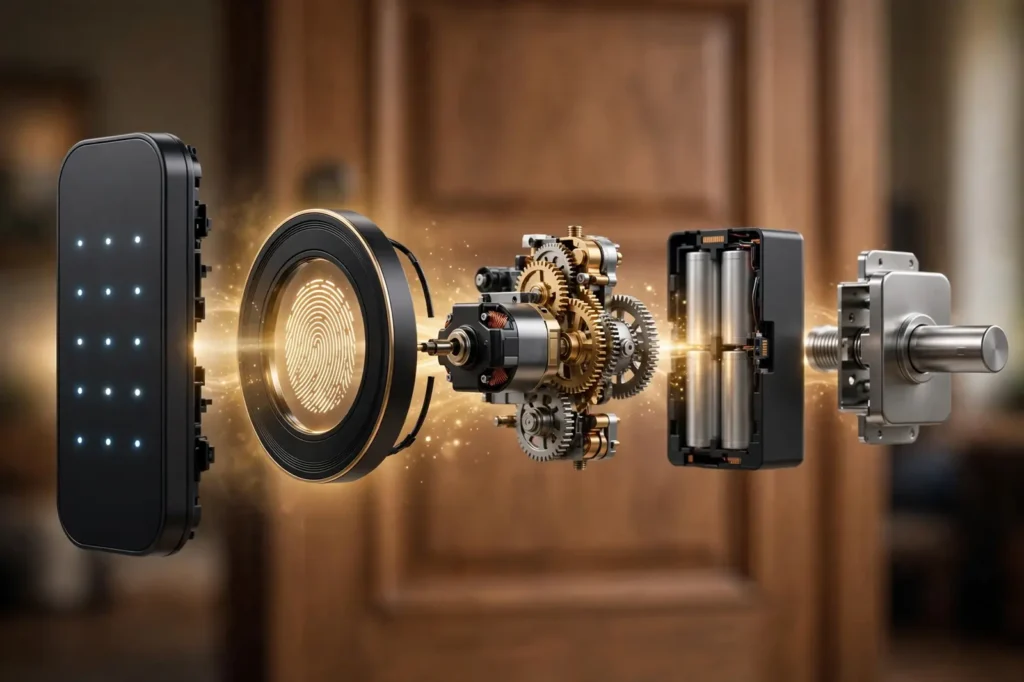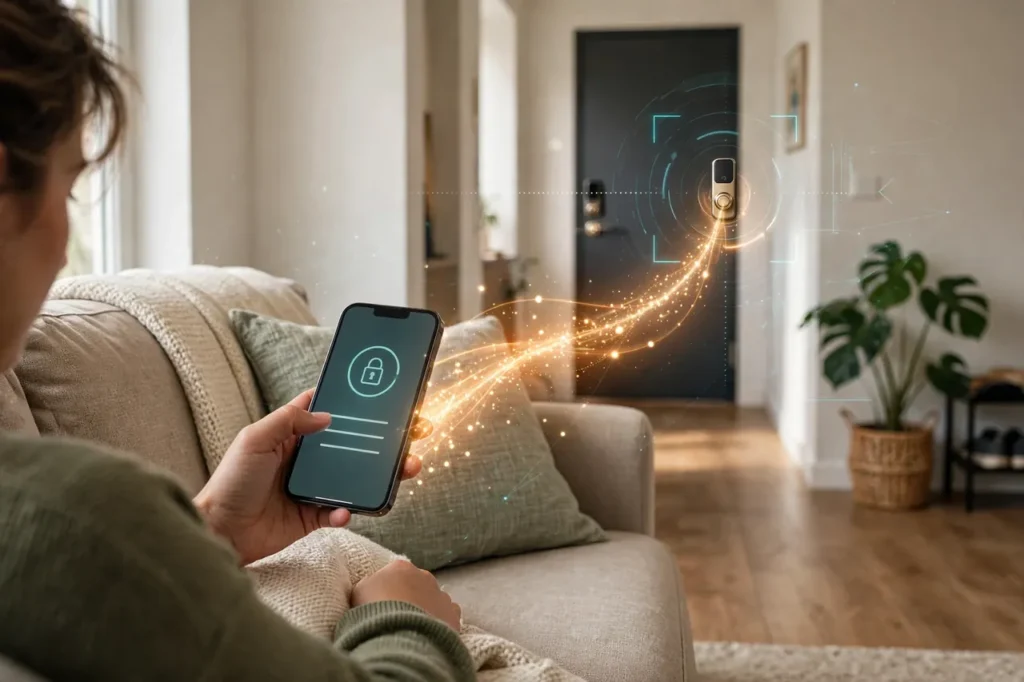
A smart lock app is the phone app that runs your smart lock. It is where you create access codes, give guests a way in, check the activity log, and set alerts — and it can lock or unlock the door from anywhere, or by Bluetooth when you stand at the door. The lock itself still opens with its codes, fingerprint, or key if the app or the internet fails.
That split explains almost everything in this guide. The app is the control room, but the lock is the guard at the door: your codes and settings are written into the lock, so the door keeps working on its own. Below you will see what the app actually controls, what still works when the internet or the brand’s server goes down, how the six major apps compare, and how to fix the problems nearly every owner meets.
What a Smart Lock App Actually Controls
The daily job of the app is simple: it shows whether your door is locked, and it locks or unlocks it with a tap. The deeper value is everything around that tap — who may enter, when, and how you find out about it afterward.
Codes, schedules, and guest access
Instead of copying keys, you manage access in the app. Most apps let you create a code for each person and attach rules to it: always on, on a repeating schedule such as a cleaner’s Tuesday slot, or temporary until a set date and time. Yale calls these its Always, Recurring, and Temporary schedules, and Schlage’s app does the same job with scheduled codes — up to 100 of them on its Encode locks, according to Schlage. Kwikset’s Halo goes further, with up to 250 codes managed in the Kwikset app.
Guest access comes in two forms. A keypad code is just numbers the guest types at the door; the guest needs nothing else. An app key (August and Yale call them guest keys or virtual keys) invites the guest to install the app and unlock with their phone. Yale and August split people into Owners, who can change settings and invite others, and Guests, who can only open the door during the times you allow.
💡 Practical Home Tip: Give every person their own code — never one shared family code. The activity log only tells the truth when each entry names a person, and when a cleaner’s job ends you can delete that one code instead of changing the code for the whole house.
The activity log and alerts
The activity log is the app’s memory. It records each lock and unlock with the time and the method — which code, which person’s app, or a manual turn. Apps turn that record into alerts: a ping when your teenager gets home, when a wrong code is tried several times, or when the battery runs low. Locks with a door sensor, such as August’s and Yale’s DoorSense, add one more fact to each entry: whether the door itself was open or closed, not just whether the bolt moved.
Auto-lock and auto-unlock
Auto-lock is a timer you set in the app: the lock secures itself a chosen time after the door closes, so a forgotten door does not stay open all night. The timer itself runs on the lock. Auto-unlock works the other way. The app watches your phone’s location inside a boundary around your home (called a geofence); when you leave and later return, it wakes up as you approach and unlocks over Bluetooth. August describes its version plainly: the lock knows you have returned home through geo-fencing and unlocks as you reach the door.
Cloud vs. Local Control: What Works When the Internet Is Down
When you tap “unlock” from another city, the command travels: your phone sends it to the lock brand’s cloud server, the server passes it over your home Wi-Fi — sometimes through a small bridge or hub — and the lock turns its motor. If any link in that chain breaks, remote control pauses. The good news is that the chain only carries remote features. The lock’s own jobs never leave the door.
Smart lock features with and without an internet connection
| Feature | Works without internet? | Why |
|---|---|---|
| Keypad codes, fingerprint, and physical key | Yes | Codes and fingerprints are stored on the lock itself |
| Locking by hand with the thumb turn | Yes | The bolt is mechanical; the motor is only a helper |
| Lock or unlock in the app while standing at the door | Yes, on most models | Your phone talks straight to the lock by Bluetooth |
| Auto-lock after the door closes | Yes | The timer runs on the lock, not in the cloud |
| Remote lock or unlock from away from home | No | The command must travel through the brand’s cloud |
| Instant alerts and live door status | No | They are pushed to your phone through the cloud |
| Sending a new code or guest key from away | No | The change has to be pushed to the lock online first |
| Unlocking with Alexa or Google voice control | No | Those assistants reach your lock through the internet |
Two details are worth knowing. First, a brand’s server outage feels exactly like your own internet outage: remote features pause, and the door itself is unaffected. Second, events that happen while the lock is offline are not lost. Wyze states that its Lock Bolt stores what happened and updates the app history the next time your phone connects within Bluetooth range — and most connected locks behave the same way, syncing the log when the connection returns.
The connection style decides the details. Wi-Fi locks such as Schlage Encode and Kwikset Halo talk to your router directly. Bluetooth-first locks, including many ULTRALOQ models and older August locks, need a small Wi-Fi bridge plugged in near the door before they can be reached from away; August notes that its Bluetooth locks require its Connect bridge for remote access and voice control.
The Major Smart Lock Apps, Compared Fairly
You do not pick an app on its own — you pick it when you pick the lock, because each lock runs on its maker’s app for full features. That is why the app deserves as much attention as the metal: our guide to the best smart deadbolt covers the hardware side of that choice. All six apps below are free to download, with features checked against the makers’ own pages and listings on October 19, 2026.
The six major smart lock apps at a glance
| App | Runs these locks | How remote control works | Guest access style | One thing to know |
|---|---|---|---|---|
| Schlage Home | Schlage Encode, Encode Plus, Arrive | Built-in Wi-Fi, no hub needed | Keypad codes with schedules | No two-factor sign-in, per Schlage’s support page |
| Yale Access / August App | Yale Assure locks; August Wi-Fi Smart Lock and Smart Lock Pro | Wi-Fi model, plug-in bridge, or hub, depending on the lock | App guest keys plus keypad codes, with owner and guest levels | Two-factor sign-in is mandatory on August |
| Kwikset App | Kwikset Halo, Aura | Built-in Wi-Fi on Halo models | Codes with schedules, including one-time codes | One account can hold several homes and many locks |
| U-tec App | ULTRALOQ U-Bolt and Latch models | Wi-Fi models, or a Bridge add-on for Bluetooth models | eKeys and codes with date and time limits | Newer ULTRALOQ locks use U-tec’s newer U home app — check your model |
| Aqara Home | Aqara U50, U100, U200 | An Aqara hub unlocks remote features on its Zigbee locks | Permanent, periodic, and one-time passwords | Its locks also live inside Apple Home on Home Key models |
| Wyze App | Wyze Lock Bolt | None — Bluetooth only, about 16 feet per Wyze’s spec | Codes and fingerprints, set up at the door | One-time codes can be created in the app with no connection at all |
Schlage Home
Schlage’s app is the control room for the Encode family. Schlage lists remote lock and unlock, creating and scheduling unique access codes, an activity log, and customizable notifications among its features. The same locks can also be locked and unlocked from the Ring app’s Live View if you use Ring cameras, which Schlage documents on its integration pages. Its weak spot is account sign-in, covered in the security section below.
Yale Access and the August App
These two are sister apps from the same parent company, ASSA ABLOY, and they work almost identically: a big lock/unlock button, a 24/7 activity feed, smart alerts, and guest keys with Always, Recurring, or Temporary schedules. Auto-unlock and DoorSense door-status sensing are their signature features — the app can tell you the door was left open, not merely unlocked. On Yale’s Z-Wave models, remote control runs through your smart home hub instead of Yale’s cloud.
Kwikset App
The Kwikset app runs the Halo and Aura locks. Kwikset’s own Halo FAQ says the app lets you lock and unlock remotely, program custom access codes with schedules, view lock event history, and share management of the lock with other people. You can hold several locations — Kwikset calls them Homes — in one account, and Kwikset states each lock can pair with up to eight smartphones. Its Google Play listing describes remote access control, instant activity alerts, and encrypted data between lock, server, and app; you can read the Kwikset app’s Play Store listing to see the current feature list before you buy the lock.
U-tec App (ULTRALOQ)
U-tec’s app manages ULTRALOQ locks: lock and unlock, add and remove users, share eKeys or codes for specific dates and times, and view the log of who entered and when, per U-tec’s documentation. ULTRALOQ extras include auto unlock as you arrive and a shake-to-open gesture near the door. The catch is the connection: Bluetooth models only work remotely through a separate ULTRALOQ Bridge, while its Wi-Fi models connect directly.
Aqara Home
Aqara Home is a full smart home app, and locks are one device type inside it. For its U-series locks, Aqara describes permanent, periodic, and one-time passwords managed in the app, lock status checking, and auto-lock after the door closes. Aqara is open about the condition: on its Zigbee locks such as the U100, remote unlock and automations require an Aqara hub. The same locks can also be added to Apple Home, where Home Key models unlock with a tap of an iPhone or Apple Watch.
Wyze App
The Wyze app runs the Lock Bolt, and it is the honest exception in this list: the lock is Bluetooth-only, so the app manages fingerprints and codes and shows the history log only when your phone is nearby — Wyze lists a 16-foot Bluetooth range. In return you get the simplest offline story here. Wyze states the lock remembers its fingerprints and codes on its own, and the app can generate one-time codes that work at the keypad even with no Wi-Fi or Bluetooth connection at all, which is a neat way to let someone in while you are away.
Does a smart lock app cost money?
For the six apps in this guide, no: downloads are free, and basic lock control — codes, guests, logs, alerts — does not sit behind a subscription, checked October 19, 2026. Kwikset states its Halo needs no hub and no subscription. Where money does appear, it is hardware, not app fees: a plug-in bridge for Bluetooth locks, or a brand hub for Aqara’s remote features. If any app offers you a paid plan at setup, read what it covers before paying — for these locks, the plan is never the part that turns the bolt.
One Lock, One App — and How Matter Is Loosening That
Today, full control of a lock lives in exactly one place: its maker’s app. That is where guest codes with schedules, firmware updates, and model-specific settings sit. Platform apps — Apple Home, Google Home, the Alexa app, Samsung SmartThings — can often lock, unlock, and show status for the same lock, and take voice commands. What they usually cannot do is manage the lock’s guest codes or settings. So most owners end up using two apps: the platform app for everyday voice and routines, and the brand app for anything deeper.
Matter, the shared smart home standard from the Connectivity Standards Alliance, is loosening that grip. Its Multi-Admin feature lets one Matter lock be shared with several platforms at once, so the same Aqara or Schlage lock can appear in Apple Home and Google Home together for everyday control. Schlage documents this pattern for the Encode Plus: you can run it in Apple Home on its own, or combine Apple Home with the Schlage Home app for the lock’s extra features. What Matter does not move is the deep management — guest schedules and lock settings still live in the brand’s app. Matter shrinks lock-in for daily control, not for administration.
If you are still choosing the lock itself, start with our smart key lock guide for the lock types and entry methods, then judge the app with this page. And if you are comparing plain keyed deadbolts against smart ones, our guide to the best door locks for home covers the hardware that needs no app at all.
Keep Your Lock App Account Safe
Your lock app account is a house key that lives on the internet. Anyone who signs in as you can open your door, so it deserves the same care as the metal key — plus a little more, because it also holds your home’s diary.
Passwords and two-factor sign-in
Use a password for the lock app that you use nowhere else, ideally stored in a password manager. Then turn on two-factor authentication (2FA) wherever the app offers it: signing in then needs a code sent to your email or phone as well as the password. August makes 2FA mandatory — August states that users must verify their identity with a second factor, an email or phone number, and that its locks use AES 128-bit and TLS encryption. Be aware of the honest exception: Schlage states in its support pages that the Schlage Home app does not currently offer multi-factor authentication, so Schlage owners should lean harder on a unique password. Either way, keep your phone itself locked with a PIN or face unlock, because an unlocked phone opens the app.
Know what the activity log holds
The log that makes the app useful also makes it sensitive. It shows when each person came and went, and on sensor-equipped locks whether the door stood open. Read one way, it confirms the cleaner arrived; read another, it shows exactly when your house is empty. Two habits keep it working for you: give access at the right level (owners can change settings and invite people; guests should only ever open the door), and delete codes and guest keys as soon as a job, visit, or tenancy ends.
If you lose your phone
A lost phone does not have to mean a lost house. Work through these steps in order:
- Sign in from another device. Use a partner’s phone, a tablet, or the brand’s web option if it has one, and confirm your lock still answers.
- Use the brand’s lost-phone tool if it has one. August, for example, lets you disable the August app and all virtual keys on your account from any browser at
lostphone.august.com. - Change the account password. This is the step that cuts off the lost phone’s signed-in session on most apps; do it even if you used a disable tool.
- Review people and codes. Remove any guest or device you do not recognize, and change your own keypad code if it was saved anywhere on the lost phone, such as in notes or messages.
- Keep using the door normally meanwhile. Your keypad code, fingerprint, and physical key never depended on the phone, so the house is not locked against you while you sort the account out.
Common App Problems, Fixed Cheapest First
Most app problems are not lock problems. Work through each list in order — every early step is free — and stop as soon as the lock behaves.
The lock shows “offline” in the app
- Check your internet on another device. If the router is down, the lock is not broken; wait for the connection to return.
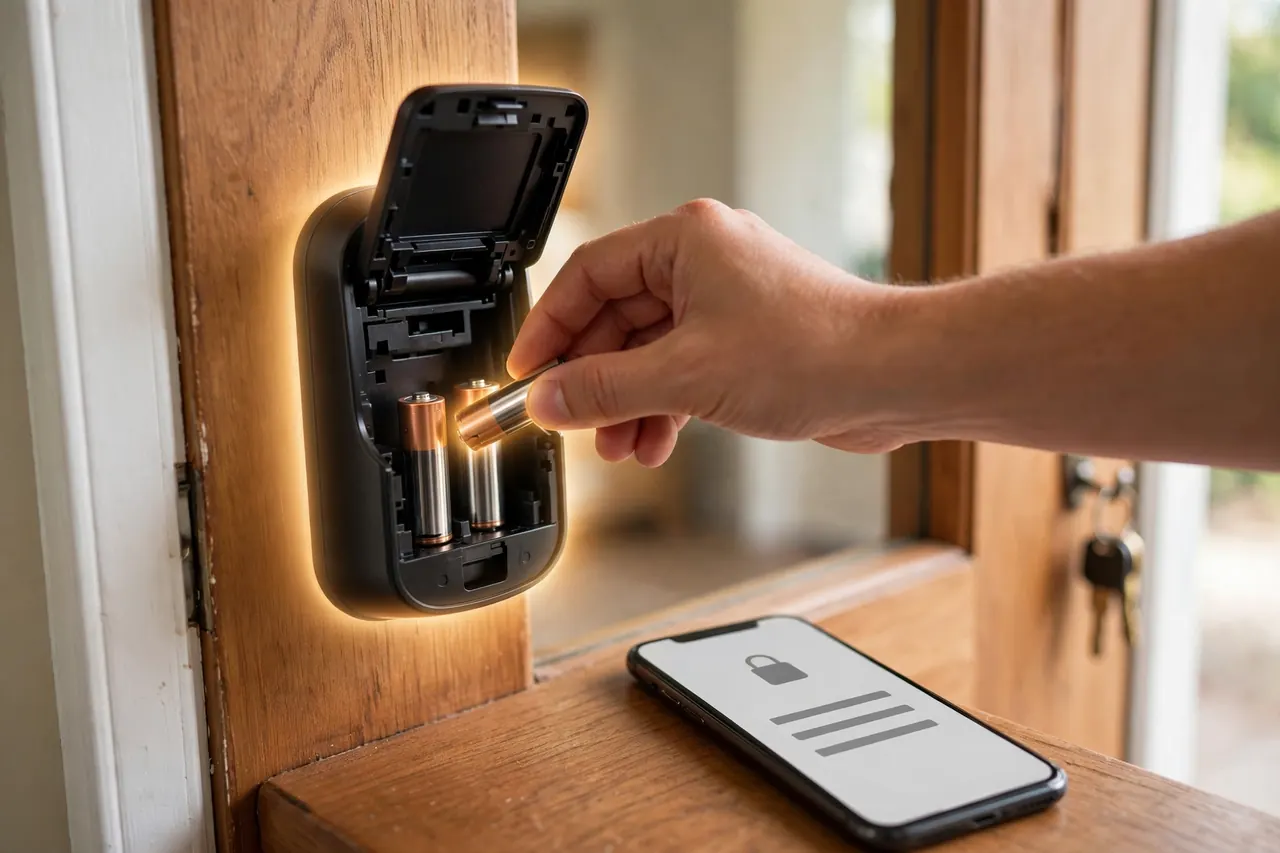
- Check the lock’s batteries. Yale’s support guidance starts here: low batteries weaken the wireless radio before they stop the motor, so fit fresh batteries before deeper fixes.
- Stand at the door and try the app there. If Bluetooth control works up close, the lock is healthy and the gap is in the Wi-Fi, bridge, or hub path.
- Restart the path in order. Yale’s troubleshooting sequence is to unplug the bridge, restart the Wi-Fi router and wait three to five minutes, then plug the bridge back in and test.
- Power-cycle the lock. Slide the battery cover off, remove the batteries for a few seconds, and refit them; the lock runs its start-up routine and tries to reconnect.
- Confirm the 2.4 GHz network. Most lock radios and bridges use the 2.4 GHz Wi-Fi band; make sure yours is not stranded on a 5 GHz-only network, and that the bridge sits within range of both the lock and the router.
- Re-add the lock in the app, last. Removing and re-adding refreshes the connection. Your codes stay stored on the lock itself, so nobody loses their way in.
The app will not pair, or cannot find the lock
- Get close. Pairing is a Bluetooth job. Yale advises staying within about 4 meters (roughly 13 feet) of the lock, with Bluetooth switched on.
- Grant the permissions. The app needs Bluetooth access, and on Android it also needs the location permission before it can scan for nearby Bluetooth devices.
- Turn off any VPN on the phone during setup — Yale lists an active VPN as a pairing blocker.
- Use fresh batteries and restart the phone, then try the pairing again before you consider resetting the lock.
Auto-unlock fires late, early, or not at all
- Set location access to “Always,” with precise location on. August’s own troubleshooting points here first: if the app may only use location while open, it cannot see you come home.
- Let the app live in the background. Exclude it from battery-saving and “sleeping apps” lists, and do not force-quit it — force-quitting makes the app lose track of whether you are home or away.
- Leave Wi-Fi and Bluetooth switched on. Phones locate themselves faster and more accurately with Wi-Fi scanning helping the GPS.
- Check the home pin. In the app’s auto-unlock or home settings, confirm the pin sits on your house, not a neighbor’s.
- Test the way the feature actually works. Auto-unlock only arms after you truly leave the area and return — walk or drive a few minutes away, wait, and come back. Moving around your own yard will not (and should not) keep triggering it.
- If it fires too early, for example while you are still parking on a dense street, look for a geofence size setting in your app and choose the smaller zone if one is offered.
Frequently Asked Questions
Do smart locks work if the Wi-Fi goes down?
Yes — the lock itself keeps working. Codes, fingerprints, and keys are stored on the lock, so entry at the door is unchanged, and auto-lock still runs. What pauses is the remote layer: app control from away, instant alerts, and voice assistants return when the connection does.
What is the difference between a keypad lock and a smart lock?
A keypad lock opens with a PIN and a key, and that is all it does — no app, no internet, no log. A smart lock adds the app layer on top: remote control, scheduled codes, guest management, and an activity history. The app, more than the keypad, is what makes a lock “smart.”
Can I add more than one lock to the app?
Usually, yes. Kwikset states in its Halo FAQ that you can add multiple locks to a single app account and even group them under several locations, called Homes. Schlage, Yale, August, and Aqara likewise let one account run several locks, which is how most people cover a front and back door.
What happens if someone forgets the PIN code?
Nobody is locked out for long. The person can use another method the lock offers — fingerprint, app, or the physical backup key most models include. As the owner, you can view, change, or reissue the code in the app; Kwikset’s FAQ confirms codes are added and edited in the Kwikset app’s access code screens for its Halo locks.
Why won’t my smart lock auto-unlock when I get home?
The usual cause is the phone, not the lock. Auto-unlock needs location access set to “Always,” the app allowed to run in the background, and Wi-Fi and Bluetooth left on. It also only arms after you have genuinely left home and returned, so test it with a short trip away, not from the driveway.
A note on accuracy: app screens, menus, and feature names change with updates. The app features in this guide were checked against the makers’ own product pages, manuals, support pages, and app store listings on October 19, 2026, so your menus may differ slightly by lock model and app version. When this guide and your lock’s manual disagree, follow the manual.
The Bottom Line
Judge a smart lock by its app as much as by its bolt. The app decides how easily you hand out access, how honestly the log reports, how safe your account is, and how calmly the system rides out an internet outage — which, as the table above shows, should cost you remote control for a while and nothing else. Your next step takes ten minutes: open your lock’s app, give every person their own code, turn on two-factor sign-in if it is offered, and set your phone’s location permission for the app to “Always.” After that, the app mostly disappears — which is exactly what a good one should do.